
#1
OFFLINE
carpediem
- Пользователи
- 16 сообщений
Начинающий летчик
- Город:Москва
- Коптер:DJI Mavic 2 Pro, Phantom 4 (продал), DJI Mavic Air (утонул)
Отправлено 07 October 2019 — 10:15 AM
Коптер DJI Mavic 2 Pro.
На одной интересной локации, где хотел полетать-поснимать, происходит следующее:
через несколько минут после запуска появляется ошибка «Remote controller connection error». При этом дрон остаётся под адекватным управлением пульта, но в приложение не передаётся ни телеметрия, ни изображение. После возникновения ошибки приземлил дрон, выключил его, выключил пульт и запустил снова — в итоге всё повторяется аналогично.
Летал достаточно много и на разных локациях, с таким столкнулся впервые, только в этом месте. Локация: Москва, лес, Лосиный остров. Поблизости нет сотовых вышек, есть ЛЭП примерно в 400 м от локации. По каким причинам может возникать такая ошибка?
-
0
#2
OFFLINE
Michael66
Michael66
- Город:Холмск
- Коптер:уехал к братишкам
Отправлено 07 October 2019 — 10:55 AM
По каким причинам может возникать такая ошибка?
Такое избирательное подавление даунлинка и телеметрии может указывать на проходящую над Вашей «интересной локацией» радиорелейную линию связи. Плотность энергии в стволе достаточно высокая, и даже если передатчик находится в 20км, дрон (или пульт) ослепнут.
-
1
#3
OFFLINE
carpediem
carpediem
- Пользователи
- 16 сообщений
Начинающий летчик
- Город:Москва
- Коптер:DJI Mavic 2 Pro, Phantom 4 (продал), DJI Mavic Air (утонул)
Отправлено 08 October 2019 — 09:54 AM
Есть ли вероятность, что в данном случае поможет переключение на 5.8Ghz?
-
0
#4
OFFLINE
Michael66
Michael66
- Город:Холмск
- Коптер:уехал к братишкам
Отправлено 08 October 2019 — 11:39 AM
carpediem, Возможно поможет. Но, может и не помочь, РРЛ штука дорогая, ее стараются использовать на максимум. Вполне возможно что 5Ггц задавлено. Проверяйте.
-
0
#5
OFFLINE
carpediem
carpediem
- Пользователи
- 16 сообщений
Начинающий летчик
- Город:Москва
- Коптер:DJI Mavic 2 Pro, Phantom 4 (продал), DJI Mavic Air (утонул)
Отправлено 24 October 2019 — 03:17 PM
Можно ли в такой ситуации выключить пульт, пока дрон находится в воздухе, и включить его снова, законнектится ли он с дроном?
-
0
#6
OFFLINE
Michael66
Michael66
- Город:Холмск
- Коптер:уехал к братишкам
Отправлено 24 October 2019 — 06:57 PM
carpediem, В обычных условиях пульт подключится. Дрон, в свою очередь, также будет выполнять действие которое ему назначено при потере радиолинка.
В ваших условиях это будет русская рулетка. Можете попробовать конечно, дрон Ваш.
-
0
#7
OFFLINE
carpediem
carpediem
- Пользователи
- 16 сообщений
Начинающий летчик
- Город:Москва
- Коптер:DJI Mavic 2 Pro, Phantom 4 (продал), DJI Mavic Air (утонул)
Отправлено 07 June 2020 — 12:36 PM
Ещё несколько раз возникала подобная ошибка в разных локациях, где вроде бы помех никаких быть не должно. Ошибка в приложении «Remote controller connection error», видеолинк отваливается, телеметрия тоже. При этом дрон управляется, и на пульт телеметрия передаётся. Выключил и затем включил пульт при дроне в воздухе, пульт подключился без проблем и ошибка исчезла. Такая ошибка возникала достаточно редко с непонятной логикой её возникновения.
Кто-нибудь ещё с таким сталкивался на Mavic 2 Pro?
-
0
#8
Гость_SergSSA_*
Гость_SergSSA_*
- Гости
Отправлено 07 June 2020 — 01:27 PM
carpediem,
Попробуйте повторно привязать пульт к дрону, возможно это совет из серии шину попинать, но вдруг … )))
-
0
#9
OFFLINE
ЯЯЯЯЯЯ
ЯЯЯЯЯЯ
- Город:Санкт-Петербург
- Коптер:DJI Mavic, DJI S900+NAZA M V2, 3 самолета на inav.
Отправлено 18 June 2020 — 05:32 PM
У меня на мавик про такое с айфоном бывает. Если воткнуть андроид, проблема исчезает.
-
0
#10
OFFLINE
Urengoec
Urengoec
- Пользователи
- 7 сообщений
Начинающий летчик
- Город:Новый Уренгой
- Коптер:Dji Mavic 2 pro
Отправлено 01 July 2020 — 02:16 PM
У меня на mavic 2 pro после активации FCC на 510-й такая ерунда происходит( сыкатно как то
-
0
#11
OFFLINE
AnnaIoanna
AnnaIoanna
- Город:Москва
- Коптер:Мavic 2 Zoom
Отправлено 26 January 2021 — 08:01 PM
Дрон Mavic 2 Zoom + телефон Samsung Galaxy S10e. Та же самая проблема.
В определенных локациях возникает ошибка «remote controller connection error».
После 5 – 10 минут полета обрубаются видео и телеметрия на телефоне, при этом дрон остается полностью управляемым, видео записывается на флэшку.
Программа DJI GO 4 предлагает воспользоваться кнопкой привязки дрона к пульту, но это не помогает.
Вот там выше писали, что это может быть из-за наличия рядом радиорелейной линии связи. Протестую. В этих же самых местах люди при мне без проблем летали на мавиках, мини и прочих эйрах. Ютуб завален видосами с этих локаций. То есть получается, что помехи, неустановленного происхождения, действуют только на мою пару дрон + телефон.
Совет выключить и включить пульт при летающем дроне выглядит страшно.
Что делать? Может быть дело в телефоне?
-
0
#12
OFFLINE
AnnaIoanna
AnnaIoanna
- Город:Москва
- Коптер:Мavic 2 Zoom
Отправлено 26 January 2021 — 08:04 PM
Remote controller connection error
А как себя повел дрон, когда вы пульт выключили?
-
0
#13
OFFLINE
AnnaIoanna
AnnaIoanna
- Город:Москва
- Коптер:Мavic 2 Zoom
Отправлено 26 January 2021 — 10:55 PM
CVBN, а как можно объяснить то, что под горой № 1 кабель и разъём работают хорошо, а под горой № 2 — плохо?
Причем всегда
Сообщение отредактировал AnnaIoanna: 26 January 2021 — 10:56 PM
-
0
#14
OFFLINE
ACDS
ACDS
- Администраторы
- 3603 сообщений
Опытный летчик АС
- Город:Южно-Сахалинск
- Коптер:M2P, AE2P
-
Услуги аэросъемки
Отправлено 28 January 2021 — 01:43 AM
как можно объяснить то, что под горой № 1 кабель и разъём работают хорошо, а под горой № 2 — плохо
Кабель не подходит для горы №2 . Совет — при полетах под горой № 2 поменять кабель на соответствующий горе №2. (Инструкция по эксплуатации DJI Mavic 2 Z стр. 9)
-
0
#15
OFFLINE
AnnaIoanna
AnnaIoanna
- Город:Москва
- Коптер:Мavic 2 Zoom
Отправлено 28 January 2021 — 08:50 AM
Совет — при полетах под горой № 2 поменять кабель на соответствующий горе №2
Это стёб такой или реальный совет?
Инструкция по эксплуатации DJI Mavic 2 Z стр. 9
У меня сейчас под рукой руководство пользователя версия 1.2, там на стр.9 схема дрона. Или вы маленькую книженцию имеете в виду, которая с дроном вместе шла?
-
0
#16
OFFLINE
ACDS
ACDS
- Администраторы
- 3603 сообщений
Опытный летчик АС
- Город:Южно-Сахалинск
- Коптер:M2P, AE2P
-
Услуги аэросъемки
Отправлено 28 January 2021 — 08:54 AM
AnnaIoanna,
конечно первое..
про отключение кабеля много написано.. у меня было не раз.. ничего страшного, дело опыта — ткнул\выткнул\перегзагрузил гоу и летаем дальше..
не зацикливайтесь на
Причем всегда
статистика есть? — приложите логи, бум думать что у вас за гора нр 2 такая загадочная )
Сообщение отредактировал ACDS: 28 January 2021 — 08:54 AM
-
0
#17
OFFLINE
AnnaIoanna
AnnaIoanna
- Город:Москва
- Коптер:Мavic 2 Zoom
Отправлено 28 January 2021 — 09:04 AM
ткнул\выткнул\перегзагрузил гоу и летаем дальше
Ни фига не летаем дальше
приложите логи, бум думать что у вас за гора нр 2 такая загадочная )
В субботу займусь. Я ещё никогда с логами не работала, начну осваивать. Вам спасибо за участие
-
0
#18
OFFLINE
ACDS
ACDS
- Администраторы
- 3603 сообщений
Опытный летчик АС
- Город:Южно-Сахалинск
- Коптер:M2P, AE2P
-
Услуги аэросъемки
Отправлено 28 January 2021 — 09:18 AM
с логами не работала
вот это правильно.. сначало мат.часть, а потом «шашечеки»..
вся инфа есть на форуме — «покурите» его хоть немного ..
-
0
#19
OFFLINE
AnnaIoanna
AnnaIoanna
- Город:Москва
- Коптер:Мavic 2 Zoom
Отправлено 28 January 2021 — 09:47 AM
вот это правильно.. сначало мат.часть, а потом «шашечеки»..
Да меня чувак с толку сбил, который дрон при покупке настраивал. Вроде компетентный, сам дроны разбирает, собирает. Его вердикт — однозначно какая-то бесполетная зона или помехи, так как видеосигнал более чувствителен и поэтому отваливается первым. На мой аргумент, что другие летают, разводит руками. Типа у меня дрон или телефон нежнее. Стала в инете шерстить сама, наткнулась на этот форум. Тут все кто выше отписались тоже логи не рассматривали. Хотя самая очевидная вещь. Не знаю, почему мне раньше никто этого не предложил.
вся инфа есть на форуме — «покурите» его хоть немного ..
вангую вы меня в субботу увидите на форуме в ветке «помогите выгрузить логи, ничего не получается» )))
-
0
#20
OFFLINE
Cheslav1968
Cheslav1968
- Город:Kharkiv
- Коптер:Dji Mavic Air, Mavic Pro
Отправлено 28 January 2021 — 11:25 AM
С логами, безусловно, работать научиться необходимо. Предположу, что в данном конкретном случае логи ничего не дадут. Я проходил через Remote controller connection error. С утратой дрона на расстоянии около 10 км. Но в разных (!) локациях. С заменой подозрительного кабеля на заведомо исправный, с установкой подозрительного кабеля на другой дрон с этим же планшетом. Всю эту комбинацию с другим телефоном и версиями ПО GO4. Отключениями и перезагрузкой планшета на разных расстояниях. Изучил опыт зарубежных коллег с форума Мавикпилотс.
Да понимаю, что проделано много тестов на первый взгляд бесполезных. По этому же пути прошли многие. Есть понимание причин, но однозначного ответа нет до сих пор. Потеплеет, продолжу.
К чему это всё пишу? Поймите, читать и изучать опыт других надо, но подставлять ответ и спокойно дальше летать не получится. Все равно придется постоянно анализировать все факторы и проверять дальше именно ваши случаи.
-
0
If your remote control can not control the aircraft, after opening DJI Fly/DJI GO 4 app, the app prompts “The aircraft is not connected to the remote control” or “The aircraft is not connected”, please refer to The app prompts an “Aircraft Disconnected” or “Aircraft not connected to RC” warning
If your cell phone cannot connect to the aircraft to use the «QuickTransfer» , please refer to Guidelines and FAQs for QuickTransfer.
If your remote control can control the drone, but after opening DJI Fly/DJI GO 4 app, the app home page shows “RC not connected to mobile device” or “Connection Guide”, please refer to the following content for help.
Issue Descriptions
After entering the app homepage, a “Connection Guide” is displayed, or a “Disconnected” warning appears. Then enter the Camera View, and an “RC not connected to mobile device” warning is shown.
For models using the DJI Fly App (Mavic Mini, DJI Mini 2, DJI Mini SE, Mavic Air 2, DJI Air 2S, DJI Mavic 3 Series, DJI Mini 2 SE, DJI Mini 3 Pro, DJI Air 3, DJI Mini 4 Pro, DJI Neo, DJI Air 3S, DJI Flip, DJI Mavic 4 Pro), there are no connection icons on the main interface of the app. It is displayed as a “Connection Guide”.

Go to the image transmission view. A warning stating that “RC not connected to..” appears (as shown below).

For the model using the DJI GO 4 App (Mavic Air, Mavic Pro, Mavic 2 Pro/Mavic 2 Zoom, Spark, Phantom 4 Series), A warning stating “Disconnected” appears (as shown below).

For models using the DJI GO App (Phantom 3 Series), The “Camera” icon in the app is gray (as shown below):
Go to the image transmission view. A warning stating “Disconnected” or “How to Connect” appears (as shown below).

Possible Cause of Issue
1. The remote controller doesn’t power on.
2. Wrong App.
3. Cable connection error.
4. Remote controller port error.
5. Mobile device error.
6. Poor contact between the mobile phone and cable: This is often caused by the use of a mobile phone protection case that prevents the cable from being properly inserted.
7. Firmware version error.
8. The Wi-Fi signal has been occupied (Only when the remote controller can be connected to a mobile device via Wi-Fi).
9. Compatibility issue.
10. For an Android device, “USB Debugging” is not enabled.
Solutions
1. Wired connection
Applicable Products
DJI Mavic Series: DJI Mavic 3 Series.
DJI Flip Series: DJI Flip
DJI Air Series: DJI Air 3S, DJI Air 3, DJI Air 2S, Mavic Air 2.
DJI Mini Series: DJI Mini 4K, DJI Mini 4 Pro, DJI Mini 3, DJI Mini 2 SE, DJI Mini 3 Pro, DJI Mini 2, DJI Mini SE, Mavic Mini.
DJI Neo Series: DJI Neo
Phantom 4 Series
Phantom 3 Series: Phantom 3 Advanced, Phantom 3 Pro
For models where the remote controller is connected to a mobile device using a USB cable, in which only one Micro USB port in the remote controller can be connected to an external device.
1) Please confirm whether the phone has installed a protective case. If so, remove it and try connecting again.
2) Please try to disconnect and reconnect the USB cable, and then check whether the remote controller is connected to the mobile phone. If possible, retry with another USB cable.
3) When using the RC-N1 remote controller, we need to confirm that the cable is connected to the correct port (need to use the connection port for the phone’s connection) as the below picture:

In addition, plug in one end of the cable normally and upside down for further try:

4) Please restart the remote controller and try again.
5) When using an Android device, for most devices, select “Charge only”. For some devices, select “Transfer files”.If the mobile device doesn’t have this prompt, please enable «USB debugging mode» in the mobile phone system. (Details can be found at the bottom of the article).
5) When an iOS mobile device connects to the RC-N1 remote controller and the DJI Fly App prompts»Accessory Not Supported», please refer to:
① We recommend using a different USB cable for re-connection and seeing if the issue has been resolved.
② If you have an Android device, we recommend using it for an exchange test.
③ If the issue disappears when an Android device is connected but the message appears when an iOS device is connected, a possible reason is that the remote controller hardware is malfunctioning. We recommend sending the remote controller back to DJI for testing, and click here to submit a repair request.
6) Please back up all important data in the app, then uninstall and reinstall the app, restart the mobile phone, and try to connect again.
7) Switch to a device with a different operating system (Android <—> iOS). If the connection still fails after using both Android and iOS devices, there may be an error with the ports of the remote controller. please send the remote controller back to DJI for testing, and click here to submit a repair request.
DJI Mavic 4 Pro is compatible with DJI RC Pro 2 and DJI RC 2, which come with the built-in screen.
2. Wired connection
Applicable to Mavic Air/Mavic Pro and Mavic 2 Series
For models using a USB cable to connect the remote controller and mobile device, in which two Micro USB ports (at the top-left and bottom) in the remote controller can be connected to an external device (Mavic Air/Mavic Pro and Mavic 2 Series)
1) Please confirm whether the phone has installed a protective case. If so, remove it and try connecting again.
2) When using the Micro USB port at the bottom of the remote controller, be sure to disconnect the left Micro USB cable. Otherwise, it may affect the bottom port connection.
3) Please try to disconnect and reconnect the USB cable, and then check whether the remote controller is connected to the mobile phone. If possible, retry with another USB cable.
4) Please restart the remote controller and try again.
5) When using an Android device, for most devices, select “Charge only”. For some devices, select “Transfer files”.If the mobile device doesn’t have this prompt, please enable «USB debugging mode» in the mobile phone system. (Details can be found at the bottom of the article)
6) Please back up all important data in the app, then uninstall and reinstall the app, restart the mobile phone, and try to connect again.
7) Switch to a device with a different operating system (Android <—> iOS). If the connection still fails after using both Android and iOS devices, there may be an error with the ports of the remote controller. please send the remote controller back to DJI for testing, and click here to submit a repair request.
3. Wireless connection
Applicable to Phantom 3 Standard, Phantom 3 SE, Phantom 3 4K, and Spark.
For models in which the remote controller is connected to a mobile device via Wi-Fi.
1. Check whether other devices are connected to the remote controller signal. It is recommended to restart the remote control and connect to Wi-Fi when Wi-Fi is available, to prevent other devices from automatically connecting.
2. Please check whether the SSID and password of the connected Wi-Fi are correct. You can go to the back of the remote controller to check the Wi-Fi SSID and password. The name and password are listed after Wi-Fi SSID and Password respectively, and the password is 12341234 by default.
1) For Spark: Please press and hold the Power button for 9 seconds while the remote controller is powered on. Three beeps from the remote controller indicate that its Wi-Fi has been reset successfully.
2) For Phantom 3 Standard, Phantom 3 SE, and Phantom 3 4K: Power on the remote controller, fully toggle the gimbal dial to the top, and quickly move the S2 switch from up to down three times or more. If the status indicator flashes red and green for 5 to 6 seconds, this indicates that the remote controller Wi-Fi has been reset successfully.
3) Please go to your mobile phone’s Wi-Fi list to check whether it is connected to other Wi-Fi. If so, please disconnect your mobile phone from the connected Wi-Fi and then connect it to the remote controller Wi-Fi.
4) Please check whether the WLAN+ or Wi-Fi Assistant function is enabled on your mobile phone. This function will cause your mobile phone to automatically disconnect from the Wi-Fi without a network connection and thus from the remote controller. As such, please disable this function.
5) Please back up all important data in the app, then uninstall and reinstall the app, restart the mobile phone, and try to connect again.
6) Switch to a device with a different operating system (Android <—> iOS). If the connection still fails after using both Android and iOS devices, there may be an error with the ports of the remote controller. please send the remote controller back to DJI for testing, and click here to submit a repair request.
Enabling “USB Debugging” in an Android device
1. Go to “System Settings” > “About Mobile Phone.”
2. Tap “Version Number” quickly 7 to 10 times (If the mobile phone has a screen-lock password, please input the correct password following the system instructions) until the mobile phone displays: “You Are Now a Developer!”.
3. Search for “Development” in “System Settings.”
4. Go to “Developer Options.”
5. Swipe through the menu to check and enable “USB Debugging.”
The operation methods and option names vary between different models of Android devices. For details, please follow the instructional documents of the brand owner.
Using Huawei and Samsung as examples:

If the issue persists after the above solutions have been tried, please send the remote controller back to DJI for diagnosis. Click to submit an Online Repair Request.
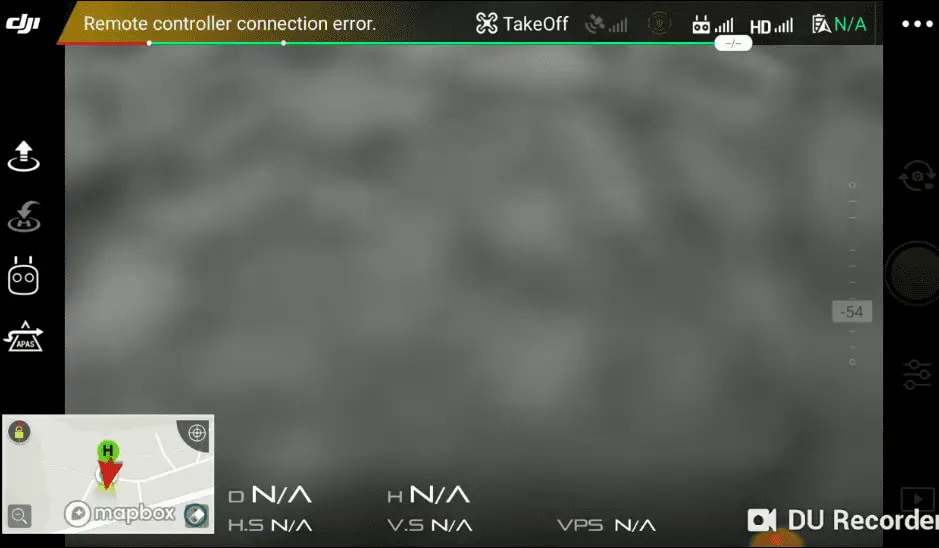
“Remote controller connection error” has been an issue on DJI drones and it has been causing a lot of frustration, nonetheless, DJI doesn’t seem to come up with a solution.
And this error is not something you can ignore or say I will come back to it later because it can be very dangerous. if the RC loses connection with the aircraft while up in the sky the drone can fall down like a brick and can cause a lot of trouble! including property damage and/or cause harm to people.
I had this problem on my Mavic Air, I ignored it and started flying, few minutes into flying it completely lost the connection and started to go wild luckily the drone was few metes away from me so I managed to catch it.
After contacting DJI support, hours of frustration, and trying different things, I fixed it and saved myself hundreds of dollars, and so I thought I could do the same for others.
So in my case, it was the USB cable that connects my RC to my phone that was causing the problem.
Now I don’t know how the connection between the phone and the controller affects the connection between the drone and the controller but apparently, it does.
So anyways I changed the cable and everything went fine, so before you try anything I want you to change the USB cable and try it.
If not keep reading.
And one peculiar thing is iOS users don’t seem to have this problem, at least not one I heard of.
If you have ios and you are having this error it is most likely a software issue instead of hardware I will come to that in a second
So, this error can be caused by both software and hardware issues, and let me start with the hardware problems-
1. Change the usb cable
A faulty cable is what is causing the problem in 2 out of 3 people I would guess.
Changing it is what helped me fix the problem, even though I still don’t understand how the connection between my phone and controller affects my drone signal.
The cable I am talking about is the cable that connects your drone with your RC.
You can buy an original replacement cable from DJI or from amazon.
2. Clean phone USB port
Clean the USB port of your phone, dirt builds up and can also cause a bad connection.
To clean the USB port I like to sweep a toothpick inside of the port to loosen up any dust, then give the phone a shake to make it fall out. Take your time and be as gentle as possible – you don’t want to damage the port.
3. Use the usb port on the bottom of the controller
Instead of using the USB port on the side of the controller use the one of the bottom.
The Port you are using might be damaged so try using the alternative port on the controller and see if that fix the problem
4. Clear cache
For the software issues let us start with the simple things such as clearing the cache.
To clear cache go to DJI Go 4 app, click on the settings three dots, under “General Settings” you can see the video cache settings. You can select to “Clear Video Cache” here and free up a lot more space on your device.
5. Update/Refresh firmware
Running an earlier version firmware can cause software issues so make sure your firmware is up to date, and even if it is up to date try refreshing it in DJI assistant.
- Power on the drone
- Connect it to your computer using the USB cable
- Open the DJI Assistant 2 software on your laptop
- Log in to the DJI Assistant 2 app and select your drone
- Next, you will see the firmware version
- Tap update and choose the latest version
- If it is already the latest version click refresh or click on “Start Update”
- Then restart the drone and check if it is okay
6. Use ios
For some reason, this issue is far more common on android than ios and so if you have an iPhone or and iPad you can try using it instead
7. Factory reset your drone and controller
If none of the methods above work for you you can try factory resetting your drone in DJI assistant
- First, Install the DJI Assistant 2 Program on your device, make sure you download the proper one.
- Connect your drone to your laptop using the USB cable provided, and wait for the software till it detects your drone
- You’ll be able to see your drone on the Connected Devices screen. Select your drone and then click on confirm.
- Click on Firmware Update. After that, you’ll be able to see the “Restore factory defaults” button.
- Click on the factory reset button and then confirm when you are asked to confirm the reset. A progress bar will pop up showing the progress of the reset. You’ll be notified when the reset is complete.
Note: After a factory reset you have to calibrate everything again.
You can also hard reset the controller
To reset the RC: Turn on the controller, the aircraft should be off. * Press C1, C2, and shutter (top right button nearest antenna) on the controller and hold for about 2 seconds or so until it beeps, then turn the controller off.”
Final choice
If none of the methods fix it it is most likely a hardware problem and you need to send it to a professional
If your drone is within a year period from activation or if you have DJI care there is a good chance you can get it fixed without any cost.
If not you might have to pay from fifty dollars up to hundreds of dollars depending on the situation
After you hand it to DJI it can take up to 15 days till they fix it and send it back to you, and it can take longer if you don’t live in the united states
If you are located in Armenia, you may contact the local dealer or DJI’s support via email to start a case and send the unit back.
-
-
#1
Hi everyone,
Today while I was getting ready to fly, the camera feed on the DJI Go app froze and it displayed a message in the corner «Remote controller connection error». The RC itself seemed to still be connected to the drone and working fine. I unplugged the controller from my phone and plugged it in again, however the app still wouldn’t connect. To solve the issue, powered off the RC and drone and powered them back on again. Everything seemed to be working fine for about 20 minutes, once I had finished my flight and was coming in to land I once again lost camera feed on the app and got the «Remote controller connection error» message again. I was still able to pilot the drone using VLOS and control everything normally using the RC, it was just the DJI Go app that was not working.
Unplugging and plugging my phone and even rebooting the controller didn’t help, the only fix seemed to be to reboot the drone which is strange as the RC still would work fine.
Drone is a Mavic Pro Platinum purchased four days ago and phone is a Samsung S8. Drone and RC are on latest firmware, DJI Go and phone are up to date.
Any thoughts?
-
-
#2
First try a different cable.
-
-
#3
I would try a fresh install of the app and a new cable like Starz said.
If you did not have VLOS, would you be comfortable returning the drone with Just RC?
-
-
#4
Same thing happened to me today when my mavic pro was RTH 600m before home point video feed cut off it says controller connection error…. It was a night flight…
-
-
#5
Same thing happened to me today when my mavic pro was RTH 600m before home point video feed cut off it says controller connection error…. It was a night flight…
Yeah was definitely scary. I use an iPad connected with the bottom port and haven’t had the issue since. Have flown a bit with android using the bottom port as well and haven’t run into the issue again on that either.
-
-
#6
I am using a Sony xzs phone on android with a type C cable that comes with the dji package connected to the side.
What cable you use for connecting it to iPad?
-
-
#7
I am using a Sony xzs phone on android with a type C cable that comes with the dji package connected to the side.
What cable you use for connecting it to iPad?
I use the cable included with the iPad (white apple one). From what I’ve heard the ones DJI include which connect to the side port are dodgy and are what cause all these connection issues.
-
-
#8
I had my first flight today on my new mv2p in beginner mode! 4 minutes into flight i had the same ‘remote controller error’ message come up and the screen froze. I closed the app which cause the drone to RTH though i restarted the app and it reconnected with the drone before it actually landed. Using a Samsung s9+
-
-
#9
I had my first flight today on my new mv2p in beginner mode! 4 minutes into flight i had the same ‘remote controller error’ message come up and the screen froze. I closed the app which cause the drone to RTH though i restarted the app and it reconnected with the drone before it actually landed. Using a Samsung s9+
I haven’t had the issue since using the bottom port of the controller, and not using the cables included with the drone that plug into the side port.
You could also try the Smart Controller (lol)
-
-
#10
Thank jvl10. Will give it a go. As for the smart controller, I’ll wait till they have a 50% off sale! (Plus it wouldn’t fit in my ‘fly more’ bag!)
-
-
#11
I’ve the same — RC wont connect to mavic 2 pro. firmware uptodate on both. tried the DJI tutorial — doesnt do what the tutorial shows. very frustrating. first flight fine — came home to extract video footage — found it was on onboard storage and not SD card — found that mavic 2 pro doesnt come with cable to link to PC!! I then found RC connection had failed. have raised a support ticket for both missing cable and unconnectability. Not great for an expensive piece of kit. had mavic pro before and never had these problems
-
-
#12
The M2 does come with a cable to connect the AC to your PC. That long flat cable is an A to C cable, same one you might use to connect the RC bottom port to a mobile device. Along with the cable, the M2 comes with a C to micro adapter.
-
-
#13
Hi and thanks Yes I saw that in the tutorials but mine didn’t! I also don’t have a cable to connect an apple device to the RC( usually use android but went to try an iPhone in case that worked — but the 2nd short cable that came with it, doesn’t fit the iPhone 6s). Camera view screen , on android device , just reads “remote controller connection error”. Going through the linking process , as per tutorials, results in “linking failed”
-
-
#14
great — DJI replied ….telling me how to format my SD card!! had neither read my email nor seen the images I sent showing device screen and the «linking failed» messages. My mavic 2 might be going back! I can’t use it. can’t believe the reply I had. DJI do you read these forums? can you step in and support ?
-
-
#15
update on mine: today i was prompted to carry out a firmware update on the RC…. and it now connects fine
-
-
#16
Hi everyone,
Today while I was getting ready to fly, the camera feed on the DJI Go app froze and it displayed a message in the corner «Remote controller connection error». The RC itself seemed to still be connected to the drone and working fine. I unplugged the controller from my phone and plugged it in again, however the app still wouldn’t connect. To solve the issue, powered off the RC and drone and powered them back on again. Everything seemed to be working fine for about 20 minutes, once I had finished my flight and was coming in to land I once again lost camera feed on the app and got the «Remote controller connection error» message again. I was still able to pilot the drone using VLOS and control everything normally using the RC, it was just the DJI Go app that was not working.
Unplugging and plugging my phone and even rebooting the controller didn’t help, the only fix seemed to be to reboot the drone which is strange as the RC still would work fine.Drone is a Mavic Pro Platinum purchased four days ago and phone is a Samsung S8. Drone and RC are on latest firmware, DJI Go and phone are up to date.
Any thoughts?
Thought I’d post here since that’s the topic with my issue with the most replies, though most of them are OT 😉
Anyway had the exact same problem a couple of times now with my new MPP and fortunately the RC to drone connection was OK so I hit RTH and then took over when it was close.
Seems strange that a cable could cause the RC to somehow «go bad» with a reboot required to set it straight but why not…Using the USB port in the bottom is going to require getting a 90° cable or adapter for the connection to the smartphone to not have the cable get in the way though.
-
-
#17
Tons of them out there.
Buy ADAM Elements RC Cable — DJI Store
Shop for ADAM Elements RC Cable on the official DJI Online Store. Find great deals and buy DJI products online with quick and convenient delivery!

m.dji.com
-
-
#18
Thanks and that’s one more thing to buy 😉 I still find it strange that a cable could cause part of the RC to «crash». Well I suppose we should be thankful that the connection to the AC still works when that happens.
Is there any history of people who used to have that problem with the side-port who never had it again after switching to the USB port ?
-
-
#19
Cable connection issues will be ongoing in the community just because of the variety of cables available. Cheap isn’t always best.
Backup plan means more than one in the bag.
-
-
#20
Yes but that seems to be a bit more than a «cable issue», more like an RC issue (microUSB connector, other hardware, software). Generally when a cable is faulty the connection between two devices is flaky/absent, here we have one device basically «shutting off» and then working fine again with the same cable once you reboot it.
If you are still a DJI Spark user you must definitely have some experience with DJI Spark error codes. When I was searching about DJI Spark errors, I found that most of them are so common to almost every other DJI drone.
Also, when I was on DJI forums, I found that some DJI Spark users are struggling with some DJI Spark errors. So I decided to write a simple article covering the most common DJI Spark error codes. Hope this article would help you to fix your DJI Spark error.
- Error 1: DJI Spark IMU calibration error (code 50).
- Error 2: DJI Spark ESC error.
- Error 3: DJI Spark gimbal gyroscope error.
- Error 4: DJI Spark air encoder error.
- Error 5: DJI Spark remote controller connection error.
- Error 6: DJI Spark sd card error.
- Error 7: DJI Spark navigation system error.
- Error 8: DJI Spark take-off error (code 200).
- Error 9: DJI Spark motor or propeller error.
- Error 10: DJI Spark error gimbal overload error (code 40003).
- Error 11: DJI Spark compass error.
- Error 12: DJI Spark battery error.
- Error 13: DJI Spark forward/ backward vision sensor error.
- Error 14: DJI Spark GPS error.
- Error 15: DJI Spark barometer error.
Error 1: DJI Spark IMU calibration error (code 50).
DJI Spark error code 50 stands for IMU (Inertial Measurement Unit) calibration error.
How to Fix IMU Calibration Error.
- Calibrate DJI Spark IMU properly. Power on the Spark aircraft and controller and connect to the mobile device. Open the DJI GO 4 app and enter the camera view. Go to Main controller settings> Sensors > IMU and hit “Calibrate IMU”. Then place the aircraft as shown on the DJI GO app screen to calibrate the IMU in different positions. Once the whole IMU calibration process is done, you are ready to check whether the error is gone.
- Change the calibration location and try again IMU calibration.
- Update DJI Spark Firmware.
- Factory reset DJI Spark using DJI Assistant 2. Download and install the DJI Assistant 2 from DJI Downloads Center to the PC. Then connect the aircraft to the PC using the USB cable and power on the aircraft. Open the DJI Assistant 2 and log in to your DJI account and choose the DJI Spark. Then hit “Factory Restore Defaults”.
Error 2: DJI Spark ESC error.
In most cases, ESC status error is caused by firmware glitches and faulty electronic speed controller (ESC).
How to Fix DJI Spark ESC error.
- Update DJI Spark firmware.
- Replace ESC. You can order buy a DJI Spark ESC for about 13$ and replace the faulty ESC. If you can get help from DJI Support to replace or repair the ESC, definitely try that way. Watch the below video for DJI Spark ESC replacement.
Error 3: DJI Spark gimbal gyroscope error.
DJI Spark gimbal error could be caused by glitched firmware and miscalibrated gimbal.
How to Fix DJI Spark gimbal error.
- Update or refresh Spark firmware.
- Calibrate the Spark gimbal. Check out the below video to calibrate the gimbal.
Error 4: DJI Spark air encoder error.
In most cases, DJI Spark air encoder error is caused by main board issue or firmware issue.
How to fix DJI Spark air encoder.
- Update or refresh the firmware.
- Replace the DJI Spark main board.
Error 5: DJI Spark remote controller connection error.
Usually, DJI Spark controller connection error is caused by crowded or poor signals, high levels of electromagnetic interference, and low battery power.
How to Fix DJI Spark remote controller connection error.
- Charge the DJI Spark controller and aircraft to a sufficient level.
- Face sides of antennas toward the drone. Instead of pointing, the ends of the antenna face the sides of the antenna toward the drone and point sideways of the antennas towards the drone for better signal coverage.
- Update DJI Spark firmware.
- Change the frequency of radio signals. A higher frequency (5.8 GHz) could help with a stronger remote connection with the aircraft. So try changing the remote controller’s channel frequency. Check the below video to know how to up the channel frequency.
Error 6: DJI Spark SD card error.
In most cases, DJI Spark throws the SD card error because of inserting an unsupported SD card or damaged SD card.
How to Fix DJI Spark SD card error.
- Check whether the SD card is compatible with the DJI Spark. Visit the DJI Spark Product Info page and check whether your SD card is listed as a supported SD card. Else try using a supported SD card.
- Repair the SD card using the Windows command prompt. Connect the SD card to the PC and open the command prompt. Then type “chkdsk” and leave a space and specify the SD card driver letter (Ex: chkdsk D). and hit enter. Once the process is done the sd card is repaired.
- Format the SD card.
- Update DJI Spark firmware.
Error 7: DJI Spark navigation system error.
Sometimes, DJI Spark navigation error causes by a temporary faulty Spark setting. So it’s better to first try restarting the aircraft.
How to Fix DJI Spark navigation system error.
- First, try restarting the aircraft.
- Update or refresh the firmware.
- Factory reset the DJI Spark.
- Calibrate DJI Spark IMU and compass.
Error 8: DJI Spark take-off error (code 200).
As On DJI Forums, this error is caused by firmware issues and faulty settings.
How to Fix DJI Spark take-off error (Error code 200).
- Restart the aircraft.
- Update the Spark firmware using DJI Assistant 2.
- Factory Reset the DJI Spark. Connect the Spark to the PC using the USB cable. Then power it on. Open the DJI Assistant 2 and choose the drone and hit “Factory Restore Defaults”.
Error 9: DJI Spark motor or propeller error.
This error is usually thrown because of uneven motor spinning. most of the time it’s caused by faulty propellers’ effects.
How to Fix DJI Spark motor error.
- Check whether propellers are installed in the proper pattern.
- Restart the aircraft.
- Replace the propellers with a new set. Slightly bent propellers could cause unstable flight and some motors need to spin faster to keep the drone stable. Therefore try replacing the current propeller set.
Error 10: DJI Spark error gimbal overload error (code 40003).
Most of the time, DJI Spark throws the “Gimbal Overload Error” because of restricted gimbal movement, faulty gimbal, faulty ribbon cable, or firmware issues.
How to Fix Gimbal Overload Error.
- Check Something is blocking gimbal movement.
- Update DJI Spark Firmware.
- Calibrate the gimbal
- Factory Reset the Spark. Connect the Spark to the PC using the USB cable and power it on. Open the DJI Assistant 2 and choose the Spark and hit “Factory Restore Defaults”.
- Replace the faulty gimbal cable.
Error 11: DJI Spark compass error.
Usually, Compass Error is caused by placing and flying the aircraft near magnetic fields which causes discrepancy with the natural magnetic field.
How to Fix DJI Spark Compass Error.
- Restart the DJI Spark.
- Avoid Electromagnetic interference. Avoid flying the Spark near powerlines, communication towers, huge buildings, etc.
- Calibrate the compass in an open wide area. Move away from the place where you currently receive Compass Error to an open area. Then perform a proper compass calibration. Read how to calibrate the compass.
- Contact DJI Support. If you still get the error, the compass might be faulty.
Error 12: DJI Spark battery error.
Usually, Spark battery error is caused by a faulty power management board and battery firmware glitches.
Fix DJI Spark Battery Error.
- Refresh or update battery firmware. Update DJI Spark firmware while keeping the glitched battery inside.
- Drain the battery to zero and recharge it fully.
- Change power management board. If the error still exists, the power management board might be glitched or damaged. So you would have to change the power management board. Advisable to contact DJI Support.
- Replace the battery.
Error 13: DJI Spark forward/ backward vision sensor error.
In most cases, DJI Spark forward and backward vision sensor error is caused by the miscalibrated sensor system.
How to fix DJI Spark downward/ forward vision sensor error.
- Restart the aircraft.
- Refresh or update the firmware.
- Recalibrate the forward and backward vision system using DJI Assistant 2. Check out the below video on calibrating vision sensors.
Error 14: DJI Spark GPS error.
In most cases, DJI Spark GPS error is caused by poor internet connection, firmware glitches, DJI GO app glitches, mobile device issues, and environmental interferences.
How to Fix DJI Spark GPS Error.
- Connect to a strong internet connection.
- Uninstall the current DJI GO app and Install the latest DJI GO app.
- Update the DJI Spark firmware.
- Try with another device.
Read the Detailed Article: Why Drone not connecting to GPS and how to fix it.
Error 15: DJI Spark barometer error.
Most of the time, restarting the DJI Spark could fix the barometer error. Besides that try the below steps to fix the barometer error.
How to Fix DJI Spark barometer error.
- Restart the aircraft and check whether the barometer error is gone.
- Update or refresh the firmware.
- Factory reset the DJI Spark.