
Ошибка GLFW error 65542 WGL: The driver does not appear to support OpenGL возникает при запуске лаунчера игры Micnecraft на ПК с Windows 11 и 10. Кроме того, с данной проблемой можно столкнуться и при запуске других игр и программ для видеомонтажа, 3D графики.
OpenGL (Open Graphics Library) — это кросс-платформенный API интерфейс программирования для обработки 2 и 3D графики, чтобы снизить нагрузку на систему.
Если касаясь самой игры Minecraft, то произошло в игре обновление шейдеров и ошибка возникает у пользователей, которые имеют встроенную видеокарту и данная видеокарта не поддерживает шейдеры. В этой ситуации вы ничего не сделайте, но можно переключиться на внешнюю видеокарту, если у вас их две. Кроме того, ошибка 65542 OpenGL может быть из-за повреждения графического драйвера.
Как исправить ошибку OpenGL GLFW 65542 в Windows 11/10
В данной инструкции разберем, как исправить ошибку «GLFW error 65542 WGL The driver does not appear to support OpenGL» при запуске таких игр как Minecraft в Windows 11/10.
1. Правильно обновить видеодрайвер
Исключим сразу две проблемы — это устаревшие графические драйвера и поврежденные. По этой причине, нужно следовать поэтапно для правильного обновления GPU драйверов. Обратитесь ниже к полным руководствам.
- Удалите текущие видеодрайвера Intel, AMD или Nvidia при помощи DDU
- Установите GPU драйвера с официальных сайтов Intel, AMD или Nvidia
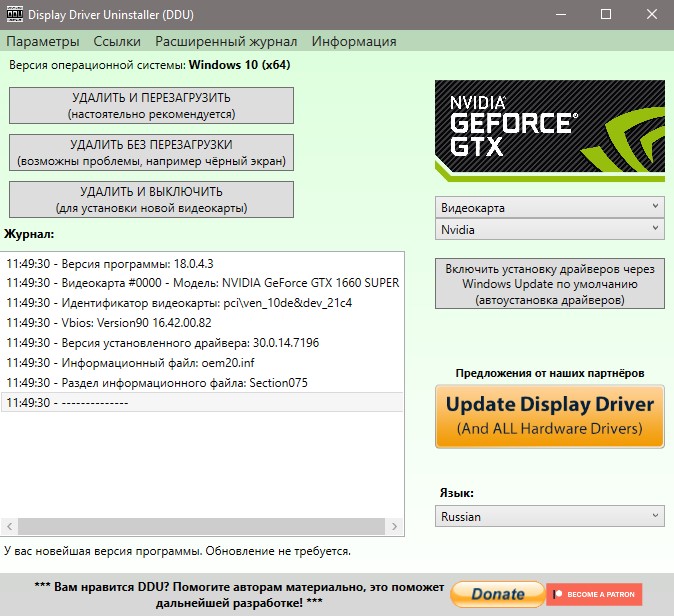
2. Удалить DisplayLink
Если у вас установлен драйвер DisplayLink USB Graphics, то было установлено на форуме игры, что данное ПО конфликтует с Minecraft Java. Сам DisplayLink нужен для подключения нескольких мониторов.
- Откройте удаление программ
- Удалите DisplayLink, если он есть в списке
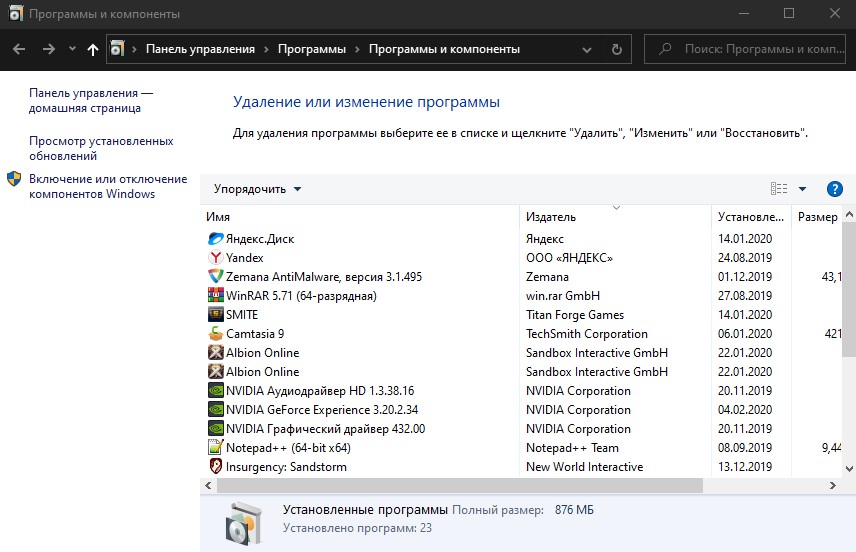
3. Скачать оригинальный OpenGL32.dll, DirectX и Java
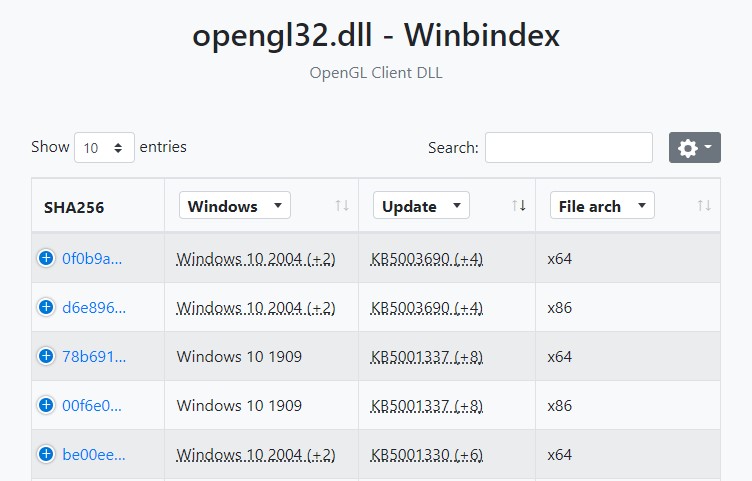
Скачайте оригинальный файл OpenGL32.dll через winbindex и скопируйте его к себе по пути:
- C:\Windows\System32
- C:\Windows\SysWOW64
! Если не помогла вставка файла OpenGL32.dll, то обновите DirectX и Java
4. Отключить встроенную видеокарту
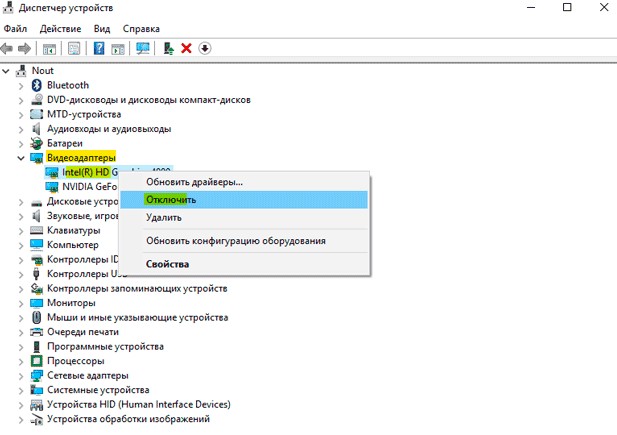
Если у вас две видеокарты на ноутбуке или компьютере, то стоит отключить работу встроенной видеокарты, так как шейдеры могут быть не поддерживать в ней, и включить работу внешней карты.
- Нажмите Win+X и выберите Диспетчер устройств
- Разверните гафу Видеоадаптеры
- Нажмите правой кнопкой мыши по встроенной видеокарте
- Выберите Отключить и перезагрузитесь
5. Попробуйте другую версию Minecraft
Если ни один выше способ не помог, то можно понизить версию Minecraft в TL Launcher.
Смотрите еще:
- Отсутствует OpenGl32.dll в Windows 11/10 — Как исправить?
- Файл Opencl.dll отсутствует в Windows 10 — Как исправить?
- Видеодрайвер Nvidia перестал отвечать и был успешно восстановлен
- Приложению заблокирован доступ к графическому оборудованию
- A D3D11 compatible GPU Feature Level 11.0 — Решение
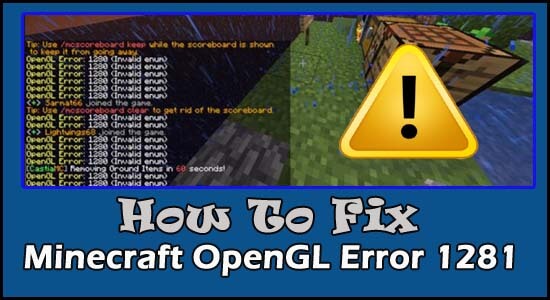
Many users see the “OpenGL Error 1281” while launching or playing the Minecraft game on their device. This is a common error that generally appears due to the OpenGL debugging settings which is by default turned on in the Minecraft game.
And disabling the settings or Show GL Errors option worked for many users to fix OpenGL Error 1281 (Invalid value) in Minecraft.
However, there are many different fixes as well that worked for many affected users to solve the error. So, here in this article find out the complete fixes to get past the error and start playing the game.
What is OpenGL?
OpenGL is a programming interfaces application that is installed on various operating systems for optimizing gaming performance.
And this is the reason in Minecraft the OpenGL is by default enabled as a setting because it optimizes the game performance by reducing the rendering load of the system by sending instructions to the GPU to not render anything.
OpenGL setting makes the game faster, smoother and enhance the performance but many users experience Minecraft OpenGL Error 1281 and are unable to play the game.
After investigating we find out that there are many different reasons that trigger the error when playing or launching the game. So, before directly jumping to the fixes check the common culprits:
Why I am getting the ‘OpenGL Error 1281’ in Minecraft?
- An issue with the installed Mods – The mods installed on Minecraft might be conflicting with the game. So, disabling the Mods might work for you.
- Outdated Graphics driver – This is another possibility that causes the error, the outdated or incompatible drivers cause various different errors. Updating the graphics driver with the latest update might help you to fix the error.
- Shaders issue – If you imported Shaders in Minecraft then this can also cause the error. The shaders use the entire resources of the applications and interfere with other mods in the game. You can remove shaders to solve the problem.
- Expired OptiFine: The 3rd party application OptiFine is used for enhancing the Minecraft gameplay and giving users more control. But if this gets outdated then this starts causing errors and the OpenGL error might be the one. Try updating the application as this may work for you to solve the error.
- Java issues: By default, Java is used by Minecraft, in the game application and generally the entire Java application is automatically installed. But if in case they are not installed automatically the error crop up.
As you are well aware of the common culprits responsible for the error, here it is suggested to follow the fixes given one by one:
Fix 1 – Run as an Administrative
Many games required administrative privilege to run properly, so check if you are logged in with a user account, then switch to the admin account.
Try logging with administrative privilege and check if this works for you to circumvent the error.
Fix 2 – Check your Internet Connection
Many times the slow or unstable internet connection starts causing errors while launching or playing the game. So, check your internet connection is working fine and stable.
Contact your Internet Service Provider to fix slow internet. Moreover, switch to a different internet connection or connect using a mobile hotspot.
And check if you are able to fix the error.
Fix 3 – Disable Show GL Errors
Minecraft itself have an inbuilt facility to disable OpenGL errors, without wasting a single time just using this solution Disable Show GL Errors. Follow the below-given instruction to do so:
To do so, follow these steps:
- Open the Minecraft application, and then click the menu button.
- After that click on the Video Settings option
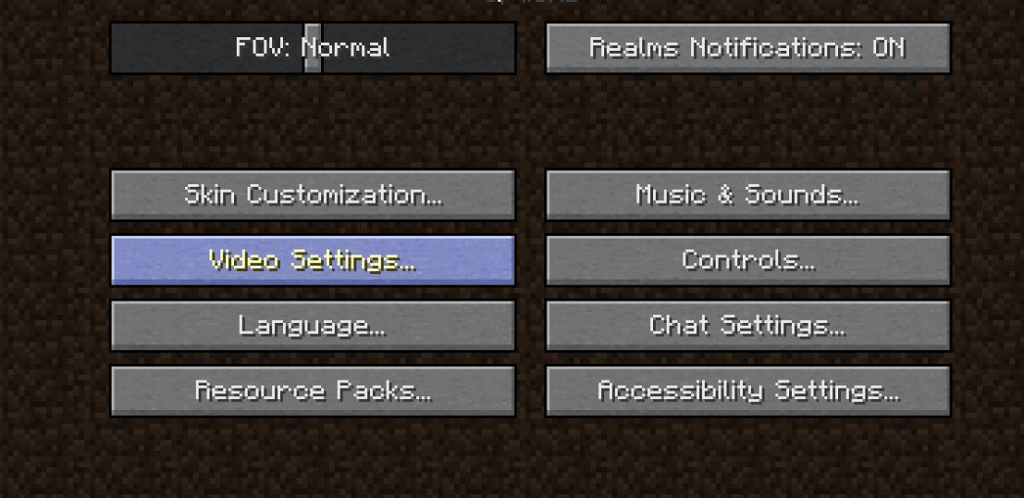
- Now, click on the Show GL Errors and then disable it.
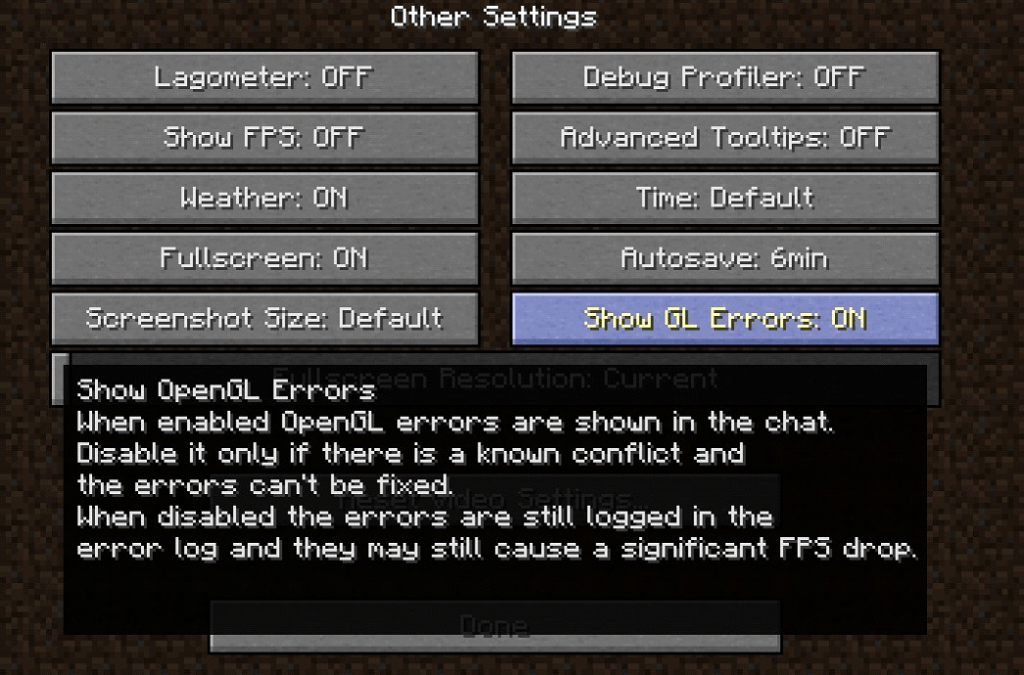
- After doing this click on the Save button to save the setting and then restart your Minecraft.
After doing so, try to play the game on Minecraft and check if the OpenGL Error 1281 is solved or not.
Fix 4 – Disable Faulty Mods
Most gamers add different types of Mods to increase the gaming experience of Minecraft. But in the same case, some of them can conflict with your Minecraft.
So, here it is recommended to disable these Mods Temporarily and check whether your Minecraft is working without an error or not. If you don’t know how to disable these mods, then do follow the below-given steps:
- Press Windows + R Button together and open the Run dialogue box.
- Now, In this text box, type %AppData%
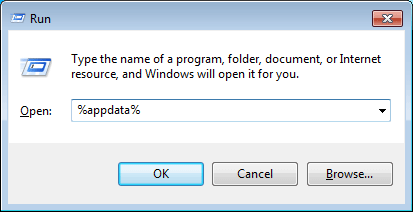
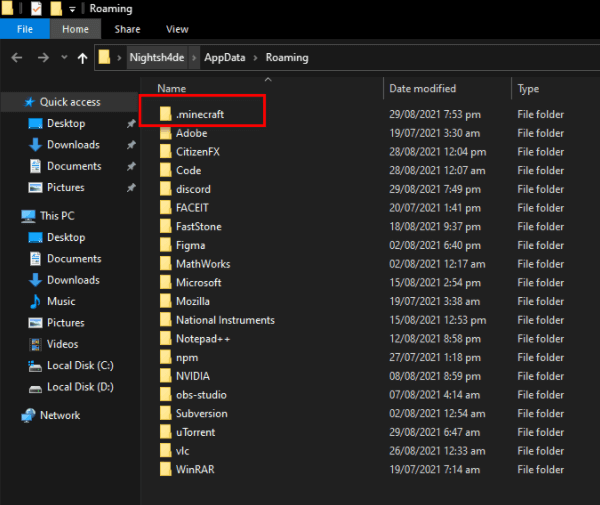
- After doing this Windows Explorer will open. Click on the Roaming directory, and then open .minecraft folder.
- After that, navigate to the mods folder and then click on it.
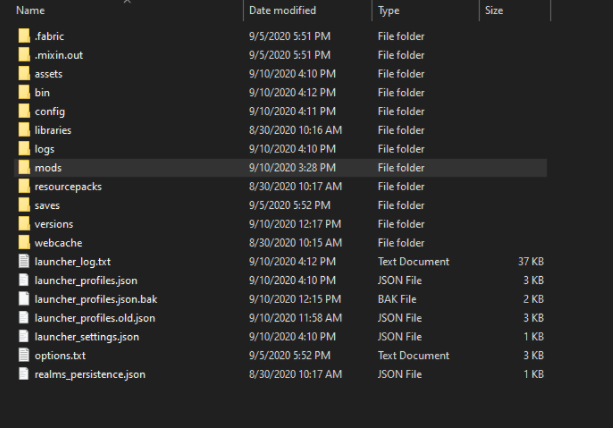
- Here you can see the list of Mods you have installed.
- Disable them one by one and try playing Minecraft to see if the error still appears or not.
After disabling the problem causing Mods from your PC then, check OpenGL error 1281 still persist or not. Once you get a problem causing Mod, re-enable all mods except the faulty one.
Fix 5 – Remove all Shaders
Lots of Gamers add Shaders on Minecraft to enable different terrains and settings. These Shaders are similar to mini-mods which help you to change the texture of the game for example you can say shaders change summer season to Winter season on the game.
And these Shaders use all the resources of the Minecraft application. Sometimes, these create a problem so in this case remove shaders from the Minecraft game. If you don’t know how to remove this shader then do follow the below-given instructions:
- Open Minecraft
- Click on the Menu button.
- Select Options
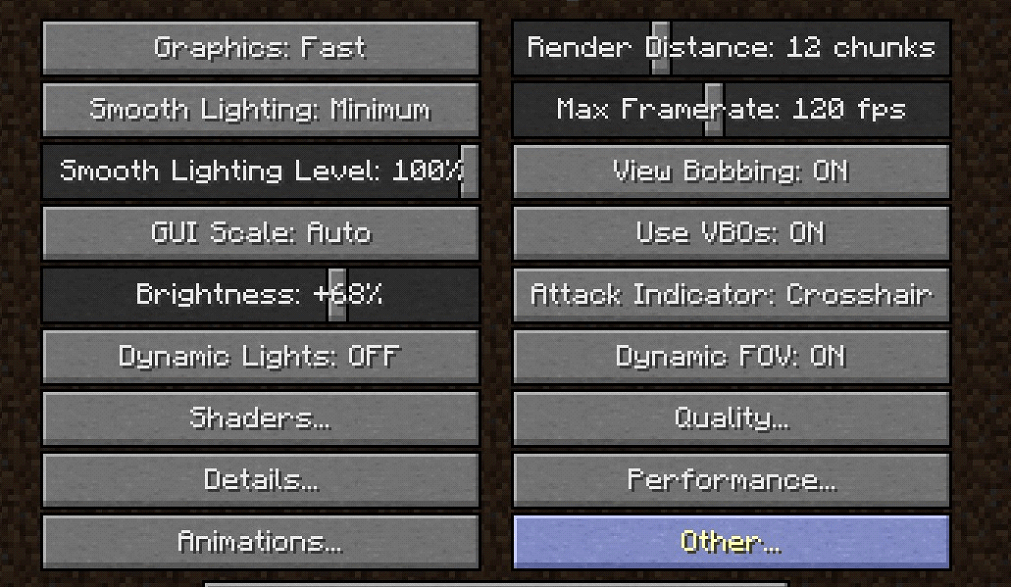
- After that click on the Video Settings option
- Here you have to click on the Shaders button.
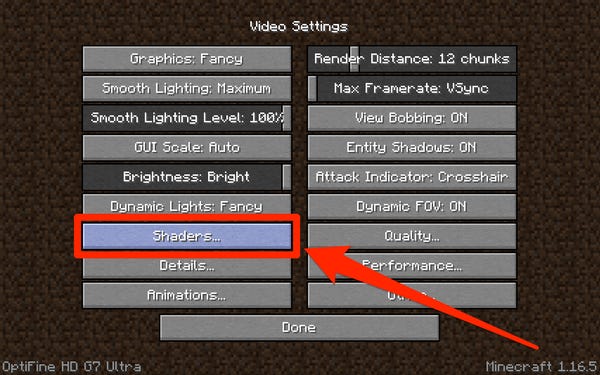
- After that click on the OFF button from the top of the Shaders page
- At last click on Done. This will disable shaders completely from the game.
If you are using a lot of shaders in your game and you want to identify that corrupted shader, you need to disable it one by one and check whether it resolves the error or not.
Fix 6 – Update Graphics Driver
An outdated or missing graphic driver can lead to OpenGL error 1281 in Minecraft. So, update your graphics card driver to the latest version with the help of Device Manager. Here are the instructions to update the graphics card driver manually:
- First, click on the Window + R key together to open the Run box
- Now type devmgmt.msc in the search box and hit Enter button
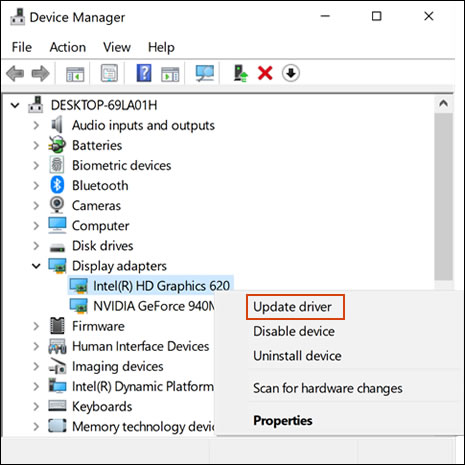
- In Device Manager, search for the Display Adapters option, then click on it to expand it.
- After that, right-click on the graphics card drives with an exclamation mark and then select Update driver to update it.
- Here, you have to click on Search automatically for drivers.
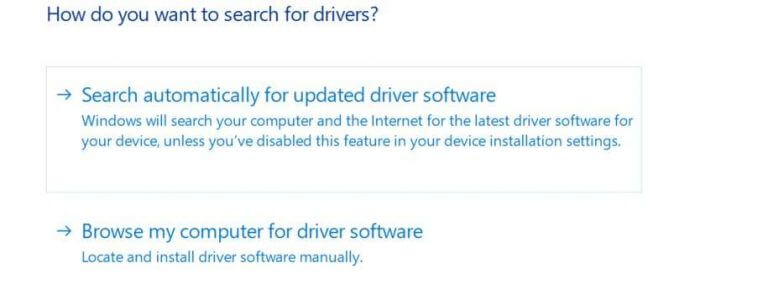
- If the latest driver update is available then download and install it on your Website.
- After installing the latest driver reboot your PC.
After restarting your PC, start your Minecraft and check whether the error still exists or not.
In other cases, if you don’t want to use the manual solution to update your graphics driver, it can be due to any region. In this case, use the powerful Driver Updater Tool. This tool helps you to automatically update the drive with one scan and fix all driver-related issues.
Get Driver Updater To Update Graphics Drivers Automatically
Fix 7 – Update your Java File
As you all know, Minecraft is developed by using java, As you download Minecraft games on PC java file of Minecraft is automatically downloaded on your PC.
If you have any problem related to the java file or if your java is missing or outdated then you may also lead to this OpenGL Error 1281. To fix this problem download the latest Java version for your PC. Here are the instructions from which you can easily download the latest version of the Java file.
- Go to the official website of Java.
- On the website scroll down and go to the Windows section
- Download the latest Java for your compatible Windows click on the Windows Online link
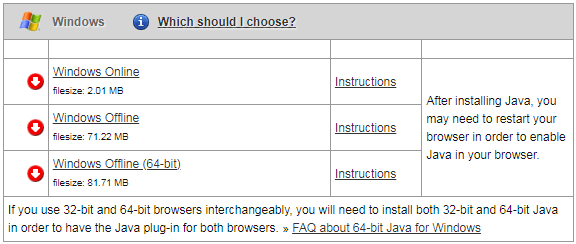
- After downloading the file click on the file and install it by following on-screen prompt instructions
- After that, restart your PC.
Fix 8 – Update OptiFine for Minecraft
To improve the game performance of Minecraft, we increase the FPS with the OptiFine mod. If you also use this OptiFine for your Minecraft, then this OptiFine is the main reason behind this OpenGL Error 1281. To solve this problem you should update OptiFine, if you don’t know how to update OptiFine then follow the below-given instructions:
- First, open the OptiFine official website.
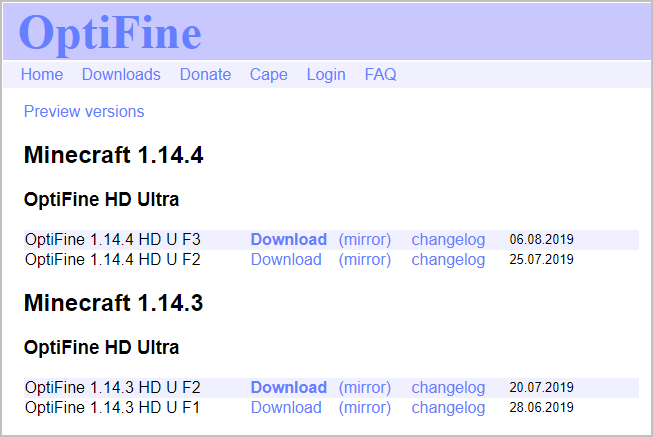
- Here select the latest version of OptiFine and Download it.
- Now follow the prompts on the screen to install OptiFine on your PC
- After installation Restart your PC
After doing that, open Minecraft and check if your problem is solved or not.
Fix 9 – Reinstall Minecraft
After following all the solutions if you are still facing the same problem then it’s better to reinstall your Minecraft.
So first, uninstall the Minecraft version and then reinstall it again. But just manually uninstalling the Minecraft file may not help you.
As when we install any software or game on our PC this automatically create some temporary files. Even after uninstalling the program it still remains on your PC. Whenever you install the latest Minecraft version on your PC, then those temporary files interfere with the latest installed version.
To fix this problem, you need to find those temporary files and delete them. So it is better to use third-party uninstall or delete any games or software so that all temporary and junk files related to that software will be removed automatically.
Here I recommend you to use the powerful and most effective Revo Uninstaller Tool. This tool removes all the junk/Temporary files from your PC in no time.
Get Revo Uninstaller To Uninstall Minecraft Completely
Recommended Solution To Optimize Your System Performance
If you find your Windows PC/laptop is running slow or you are encountering various stubborn computer errors and issues then it is suggested to scan your system with the only PC Repair Tool.
This is an advanced repair tool that just by scanning once detects and fixes various Windows problems and stubborn computer errors.
With this, you can fix various update errors, repair the corrupted Windows system files, DLL errors, registry errors, prevent virus or malware infection, and much more.
This not only fixes errors but also optimizes your Windows PC performance like a new one to optimize the gaming performance.
Get PC Repair Tool to Make Your PC Error Free & Speed up
Conclusion:
Here I tried to provide complete information related to OpenGL error 1281 on Minecraft.
Hope after trying all the solutions one by one, you can fix this Minecraft OpenGL error completely without any issues.
I hope this post turns out to be workable for you and one of our solutions managed to get past the error.
Apart from this, if you have any queries related to this article, feel free to contact us on our official Facebook page.
Good Luck..!
Hardeep has always been a Windows lover ever since she got her hands on her first Windows XP PC. She has always been enthusiastic about technological stuff, especially Artificial Intelligence (AI) computing. Before joining PC Error Fix, she worked as a freelancer and worked on numerous technical projects.
В мире не существует идеальных с
технической точки зрения игр. Minecraft не стал исключением, хотя к творению Маркуса Перссона в этом плане очень мало вопросов. Однако геймеры по сей день продолжают сталкиваться с различными нюансами, мешающими нормально наслаждаться исследованием и строительством.
Ошибка OpenGL 1282 Invalid Operation в Майнкрафт
— одна из самых распространенных проблем, с которой сталкиваются игроки на
компьютерах. Причем сообщение Minecraft Opengl error
1282 может выскочить как в момент запуска тайтла или загрузки мира, так и прямо
во время прохождения. В этом материале разберемся, что означает Opengl error
1282, почему она возникает и как ее исправить.
За загадочным названием OpenGL скрывается
графический интерфейс, который Minecraft использует для работы с видеокартой. Когда
всплывает окно с сообщением Opengl error 1282 или что-то в этом
роде, то игра сообщает о том, что была
выполнена некорректная графическая операция.
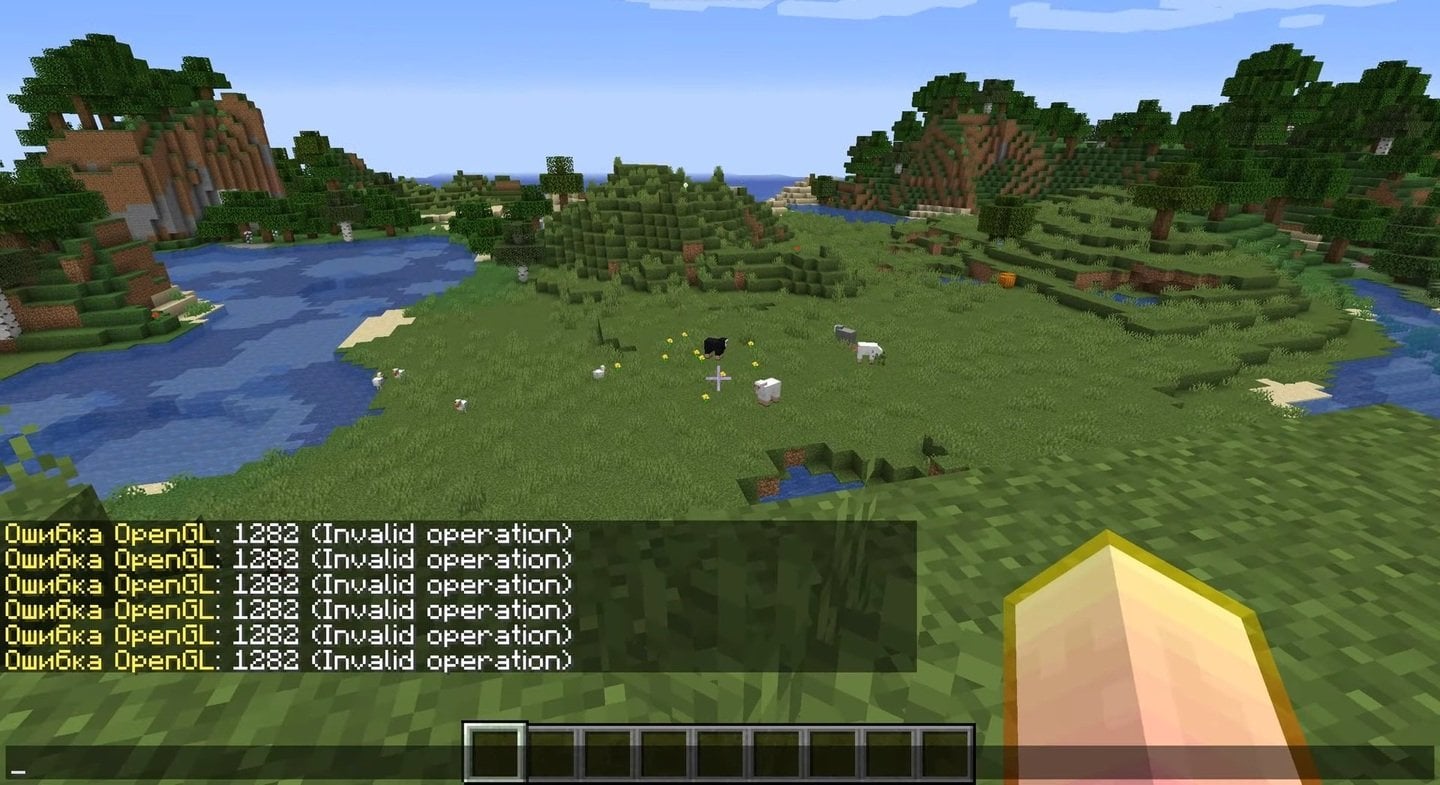
Источник: скриншот CQ.ru / Сообщение с ошибкой
При этом сама формулировка «Invalid
operation» указывает на то, что случился конфликт между тайтлом, драйверами или
настройками системы. Если все сильно упростить, то ошибка 1282 указывает на
проблемы с «общением» между кубическим проектом и графическим процессором.
Стандартное сообщение об ошибке выглядит следующим образом: OpenGL
Error:
1282 (Invalid Operation). Правда, в некоторых случаях текст может отличаться, хотя его посыл остается таким же. Иногда эта ошибка появляется один раз и никак не мешает наслаждаться прохождением. Но чаще
всего она приводит к вылетам и фризам, что и побуждает пользователей искать
способы исправления.
Основные
причины возникновения
К числу основных причин возникновения ошибки Opengl 1282 относятся:
- устаревшие или поврежденные драйверы видеокарты;
- несовместимые моды или шейдеры;
- неправильные графические настройки;
- проблемы с Java;
- несоответствие версий системы и Minecraft;
- ошибки при рендеринге текстур.
В зависимости от ситуации ошибка может
проявлять себя по-разному. Поэтому условно пользователи делят все причины на программные и аппаратные. В зависимости от этого разнятся
способы их исправления.
Обновление
драйверов видеокарты
В первую очередь следует обновить
драйверы видеокарты. Для этого перейдите на официальный сайт NVIDIA, AMD или
Intel и установите последнюю версию драйвера под вашу систему. После обновления
обязательно перезагрузите свое устройство и попробуйте снова запустить Майнкрафт.
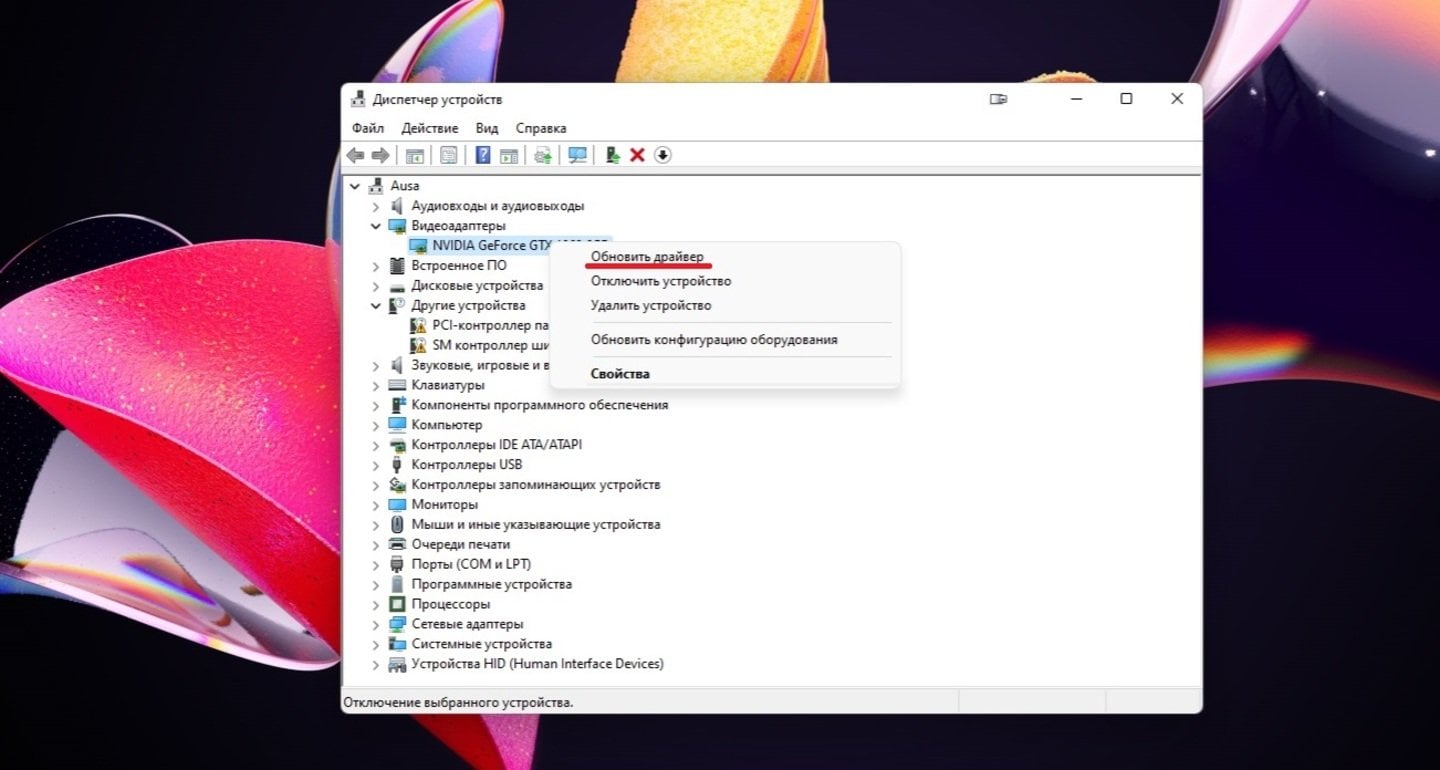
Источник: CQ.ru / Обновление драйверов видеокарты
Также можно на своем устройстве
открыть «Диспетчер устройств», найти вкладку «Видеоадаптеры», кликнуть правой
кнопкой мыши по названию видеокарты и выбрать пункт «Обновить драйвер».
Остается только следовать всплывающим инструкциям, а в конце перезагрузить
компьютер.
Проверка
и обновление Java
Работоспособность Minecraft Java
Edition напрямую зависит от версии Java. Поврежденная или устаревшая программа
часто вызывает сообщение с ошибкой. Поэтому рекомендуется полностью удалить
Java с компьютера и заново установить актуальную итерацию.
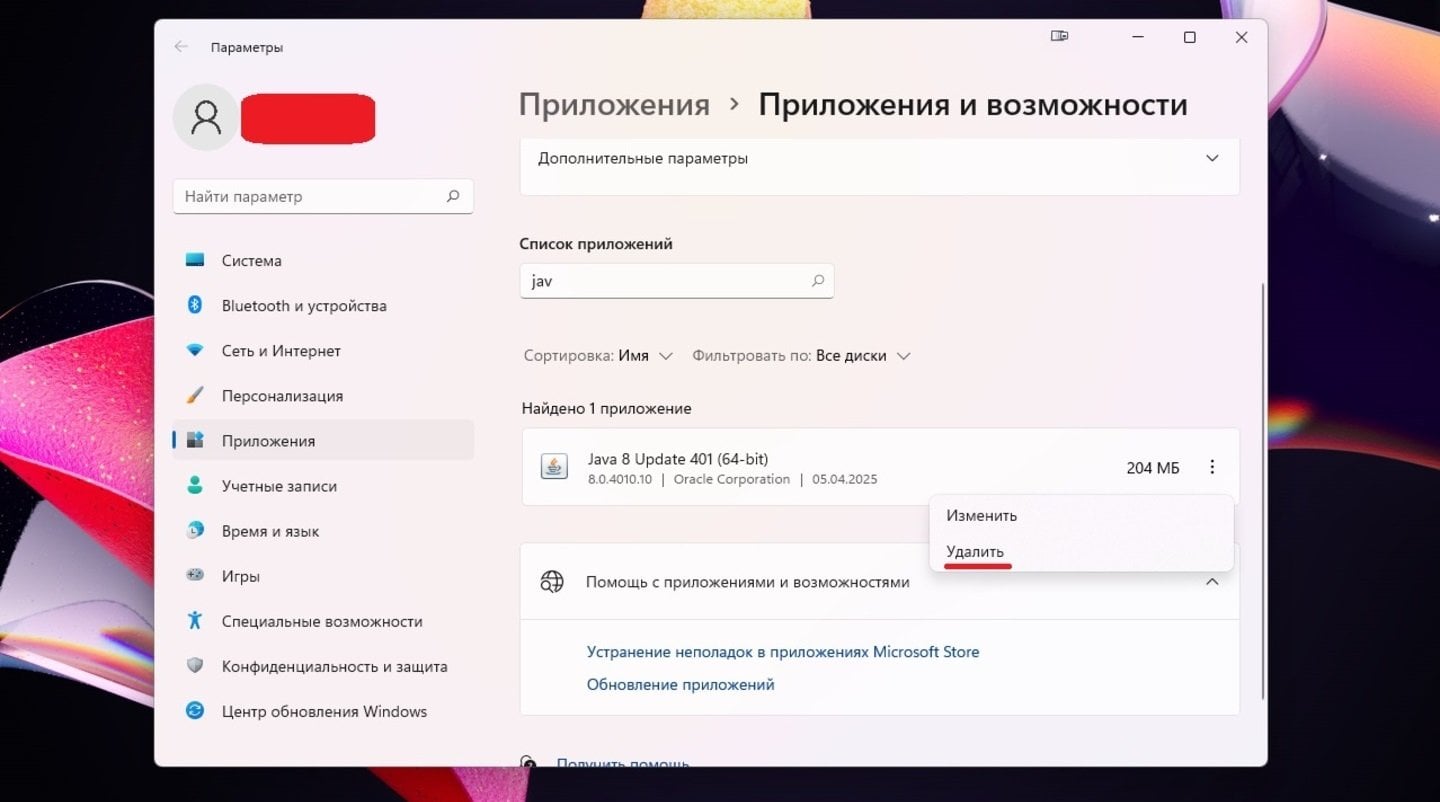
Источник: CQ.ru / Удаление Java
Лучше всего делать это через окно «Приложения
и возможности» в Windows.
В окне поиска введите нужное название, а затем кликните на кнопку «Удалить».
Что касается установки, то скачивать приложение лучше только через официальный сайт. После процедуры обновления стоит убедиться в том, что игра использует именно встроенную или актуальную
Java, а не старую версию из системы.
Изменение
настроек графики
Некорректные настройки графики
также могут быть причастны к неверным операциям OpenGL. В таком случае запустите
Minecraft, зайдите в настройки, а затем поочередно:
- снизьте дальность прорисовки;
- отключите VSync;
- выставьте графику на минимальные параметры;
- временно отключите шейдеры;
- проверьте параметры сглаживания.
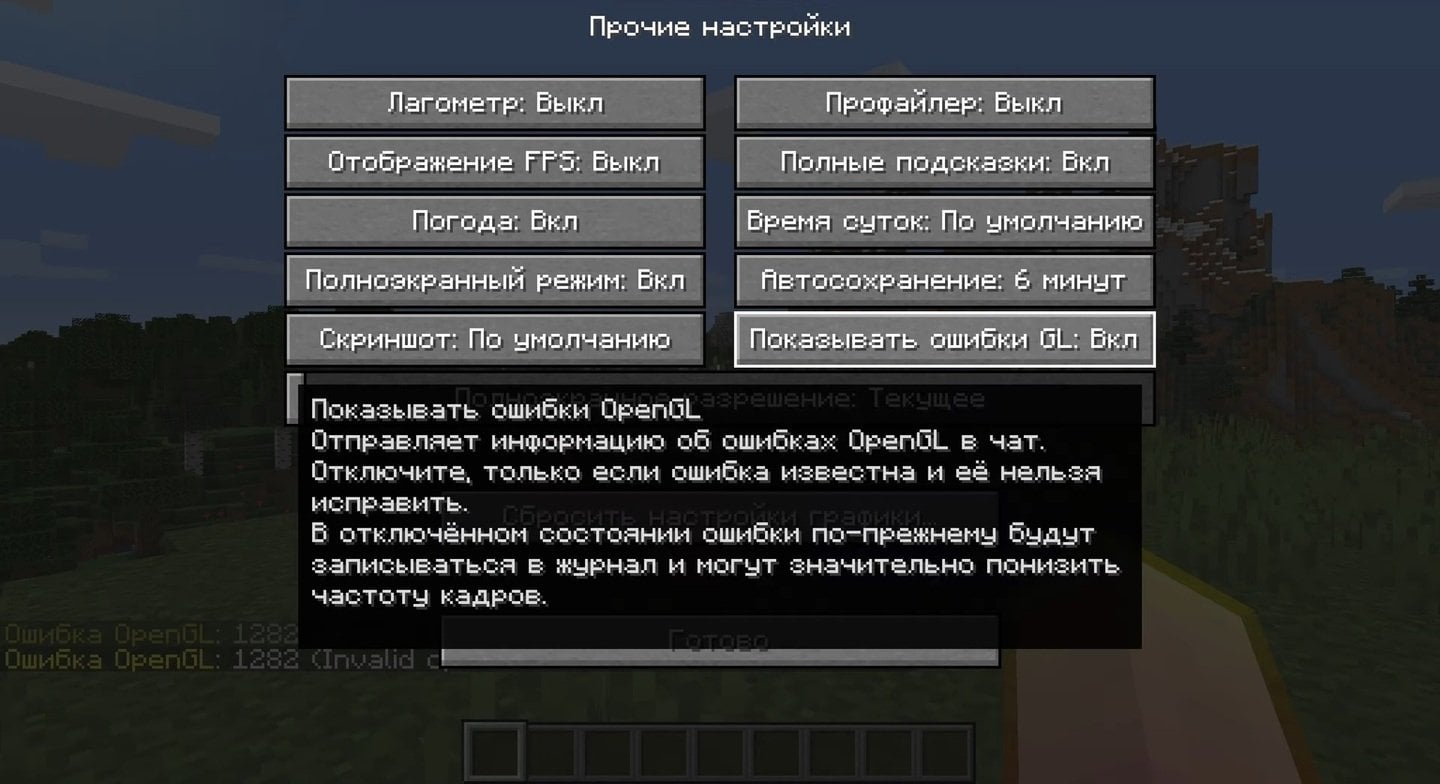
Источник: скриншот CQ.ru / Настройка графики
После сохранения внесенных изменений
перезапустите игру и проверьте, исчезла ли ошибка. Для исправления проблемы
может хватить как одного пункта, так и потребоваться минимальная настройка для
всей картинки в целом. Это может занять некоторое время, зато сбережет много ваших нервов.
Отключение
модов и шейдеров
Моды — одна из самых частых причин
появления окна с проблемой. К сожалению, множество фанатских творений плохо
стыкуется с актуальной версией кубического тайтла. И в результате вместо свежего
и интересного игрового опыта геймеры получают только головную боль и вылеты с
ошибками.
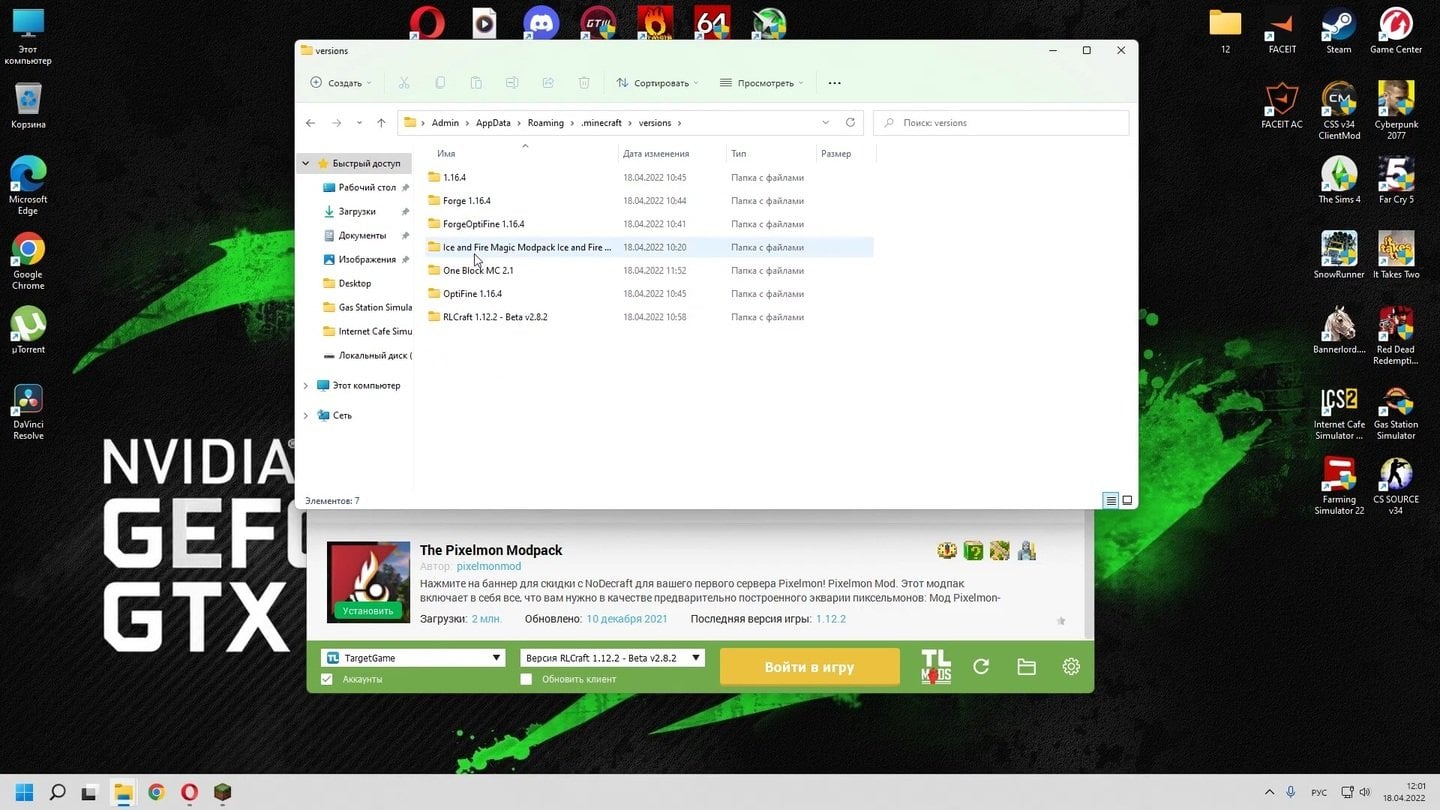
Источник: скриншот CQ.ru / Удаление модов
Если окно Opengl 1282 invalid
operation появилась после установки тех или иных модификаций, то поочередно удалите
их с компьютера. Особенно часто сообщение с вылетом происходит из-за устаревших
сборок OptiFine, Sodium или шейдерпаков, не совместимых с текущей итерацией
Майнкрафт. После снесения указанных файлов перезапустите проект и проверьте его
работоспособность.
Переустановка
Minecraft
Если предыдущие методы не помогли,
то попробуйте полностью переустановить Minecraft.
Для этого удалите все файлы игры со своего компьютера. Не стоит забывать про
папку .minecraft, иначе может не сработать. Затем заново скачайте клиент с
официального сайта, установите, запустите, наслаждайтесь постройкой и
исследованием.
Это радикальный способ, к которому стоит прибегать только в
крайнем случае. Ну или же лучше заранее сохранить свои миры, чтобы перенести их
в новую версию.
Дополнительные
моменты
Поскольку ошибка может быть
вызвана множеством различных факторов, то и подводных камней тут гораздо
больше. Указанные выше способы позволяют исправить значительную часть причин,
но далеко не все.
Если же после совершенных манипуляций
сообщение об ошибке OpenGL Error
1282 Invalid Operation
продолжает всплывать, а игра вылетать и тормозить, то дело кроется не
в программной части, а технической.
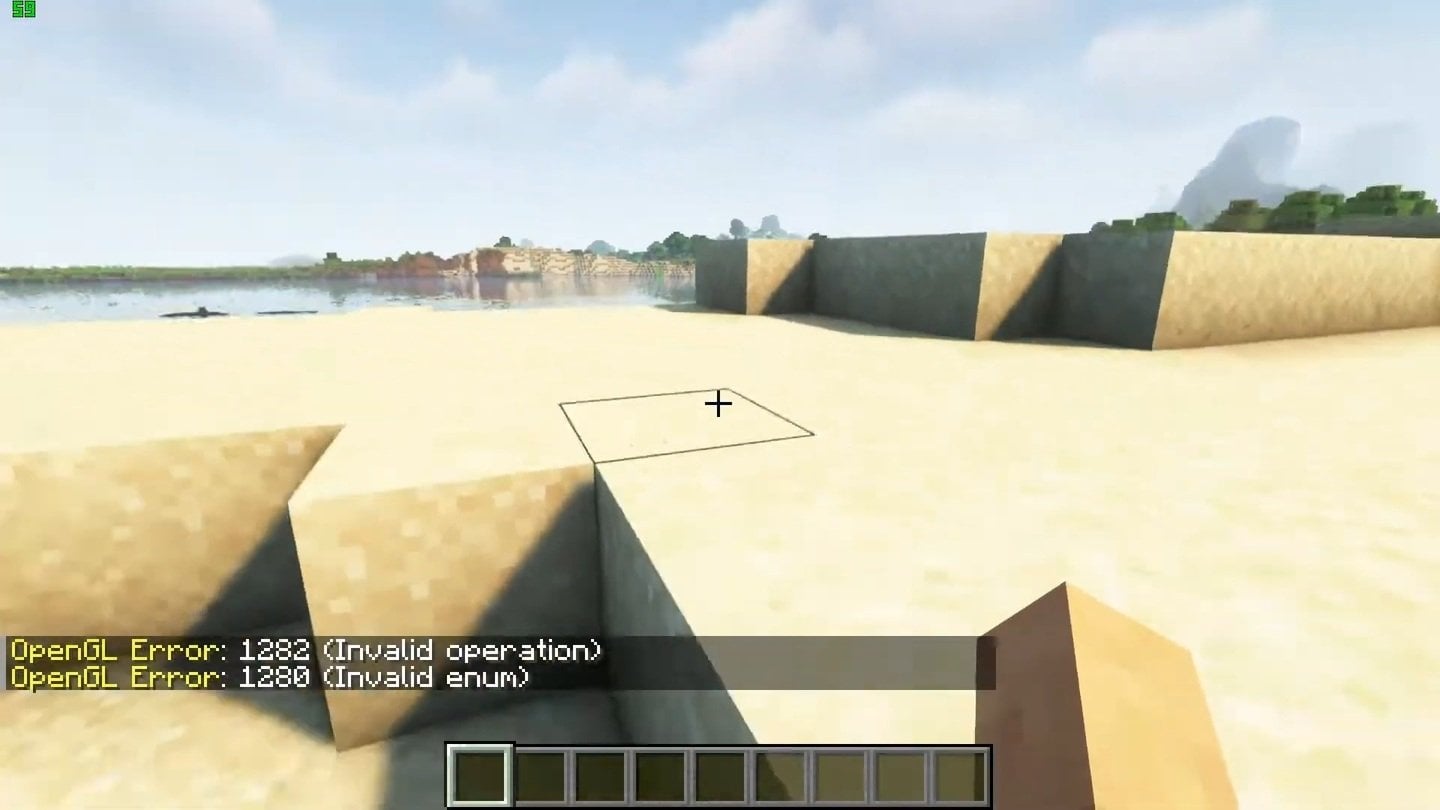
Источник: скриншот CQ.ru / Ошибка OpenGL Error 1282 Invalid Operation
Например, все может быть вызвано аппаратными
ограничениями вашего устройства или несовместимости версии Minecraft с
используемым железом. В этом случае необходимо проверить следующие моменты:
- Убедитесь, что ваша видеокарта поддерживает используемую версию OpenGL.
- Не запускайте игру через сомнительные лаунчеры, а используйте только проверенные варианты.
- Закройте фоновые программы, которые могут конфликтовать с рендерингом. Этим вы уберете не только «мешающийся» софт, но снимите нагрузку с железа.
- Не забывайте время от времени следить за обновлениями Windows, накатывать новенькие драйвера и устанавливать актуальные файлы в Майнкрафт.
По итогу можно отметить, что проблема OpenGL Error 1282 Invalid Operation, хоть и часто встречающаяся, но вполне решаемая. Главное, не паниковать, а постараться найти причину вылетов и всплывающих окон. Только перепробовав все указанные способы, получится снова спокойно исследовать кубический мир, сражаться с мобами и строить величественные здания.
Заглавное фото: CQ.ru
Читайте также:
- Все новые мобы Minecraft: от броненосца до наутилуса
- Опыт в Minecraft: полный гайд по фарму и использованию
- Обтесанная древесина в Minecraft: подробный гайд для стильных построек
- Новые данжи в Minecraft
- Зачарования Minecraft: новые механики и лучшие комбинации
Сталкивались ли вы с ошибкой OpenGL 1282 в Minecraft?
0 голосов
При запуске популярной игры «Minecraft» игра может внезапно прерваться сообщением «GLFW error 65542: WGL the driver does not appear to support OpenGL», и не понятно, что с этим делать. Причиной возникшей проблемы могут являться устаревшие драйвера видеокарты, в полной мере не поддерживающие функционал спецификации OpenGL. Ниже рассмотрим сущность ошибки, а также обозначим эффективные пути её решения.
- Суть ошибки «GLFW error 65542: WGL the driver does not appear to support OpenGL»
- Что делать для замены библиотеки opengl32.dll
- Обновление драйверов для видеокарты при ошибке с кодом 65542
- Установка новой версии Java, если возникают проблемы с OpenGL
- Заключение
Суть ошибки «GLFW error 65542: WGL the driver does not appear to support OpenGL»
Как следует из данного сообщения, появление ошибки 65542 связано с отсутствием поддержки драйвером WGL работы технологии OpenGL. Указанная технология задействуется при выводе различных вариантов 3D графики, активно используемой в игре «Minecraft».
GLFW error может возникнуть по следующим причинам:
- На пользовательском ПК установлены устаревшие драйвера;
На компьютере пользователя могут быть установлены устаревшие драйвера - На компьютере установлены аппаратные компоненты, не поддерживающие (или не поддерживающие не в полной мере) работу технологии OpenGL;
- Пользовательская система работает с устаревшей версией Java.
Система работает с устаревшей версией Java
Давайте рассмотрим способы, позволяющие исправить проблему с уведомлением «WGL the driver does not appear» на вашем ПК.
Это может быть полезным: Ошибка Out of memory — как исправить?
Что делать для замены библиотеки opengl32.dll
Эффективным способом устранить ошибку 65542 является замена dll-библиотеки opengl32.dll на модифицированную.
Процедура замены состоит в следующем:
- Закройте ваш «TLauncher»;
Закройте TLauncher нажав на крестик справа - Перейдите на ресурс mediafire.com;
- Кликните на «Download», и загрузите zip-архив с файлом opengl32.dll на ваш ПК;
Загрузите архив на ваш ПК нажав на кнопку «Download» - В архиве будут две директории – «32 bit» и «64 bit». В зависимости от версии вашей ОС Виндовс войдите в первую или вторую директорию.
В зависимости от типа разрядности вашей ОС выберите нужную папку - Если вы не осведомлены, какая версия Виндовс установлена на вашем PC, нажмите на сочетание кнопок Win+Pause. В открывшемся окне просмотрите значение параметра «Тип системы»;
Просмотрите значение параметра «Тип системы» - После входа в соответствующую директорию скопируйте файл opengl32.dll;
Скопируйте указанный файл в буфер обмена вашего ПК - Затем перейдите по пути C:\Program Files (X86)\Java\jreXXXX\bin\. Вставьте туда скопированный ранее в буфер файл opengl32.dll.
Затем подтвердите наложения файлов. Останется запустить игру и наслаждаться геймплеем Minecraft. Это должно помочь устранить ошибку «GLFW error 65542: WGL the driver does not appear to support OpenGL».
Обновление драйверов для видеокарты при ошибке с кодом 65542
Ещё одним способом, позволяющим избавиться от ошибки «GLFW error 65542» является обновление драйверов до самой актуальной версии продукта.
Алгоритм реализации выглядит следующим образом:
- Нажмите на Win+R;
- Введите в открывшемся окне команду devmgmt.msc и нажмите на Энтер;
Введите указанную команду в соответствующую строку и нажмите ввод - В перечне найдите пункт «Видеоадаптеры» и дважды кликните на нём;
- Наведите курсор на вашу видеокарту, нажмите правую клавишу мыши, и в открывшемся меню выберите «Обновить драйвер».
Также для установки самых актуальных драйверов рекомендуем посетить сайт производителя вашей видеокарты. Найдите и загрузите оттуда самые актуальные драйвера для вашей карты.
Кроме того могут помочь полуавтоматические инструменты для установки драйверов «DriverPack Solution», «Driver Booster Free» и другие аналоги.
Установка новой версии Java, если возникают проблемы с OpenGL
Также мы рекомендуем обновить версию Java, установленную на вашем ПК. Свежую версию программы можно загрузить с java.com/ru/download/. После установки перезагрузите ПК и вновь запустите ваш Майнкрафт.
Читайте также: недопустимая сессия в Майнкрафт. Попробуйте перезапустить игру.
Заключение
Выше мы рассмотрели, почему возникает ошибка «GLFW error 65542: WGL the driver does not appear to support OpenGL» и что же именно нужно сделать для её исправления. Наибольшую эффективность в устранении дисфункции показал способ с заменой файла opengl32.dll. Используйте данный способ для устранения проблемы, что позволит вам в полной мере насладиться увлекательным геймплеем игры «Minecraft».
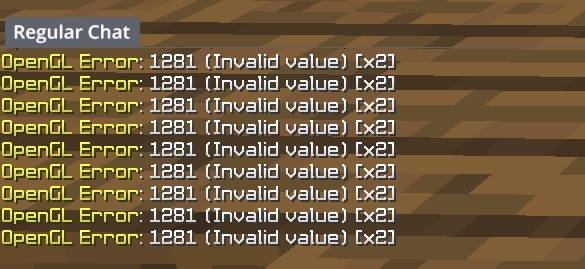
A lot of Minecraft have seen the OpenGL Error 1281 error occurring on Minecraft. They keep seeing the message OpenGL Error: 1281 (Invalid operation) appearing in the lower corner of the screen, in Chat. It sometimes also causes other issues like black screen or lagging.
If you’re one of them, it can be very annoying for you. But don’t fret! There have already been some effective ways to fix this issue. Here we list the fixes you can try for the OpenGL Error: 1281. Take a look at them below and see if they are able to help you.
Remove your resource packs and mods
Maybe you’re having compatibility issues with the resource packs and mods you installed on Minecraft, so you see the OpenGL Error 1281 error. You can try removing them and see if the error is gone. If it is, then you may need to test to see which one is the problem mod. But if not, move on to the fixes below.
Update OptiFine
You may see the OpenGL Error: 1281 error message because the version of OptiFine you’re using is outdated. You can try updating this software and then see if this is helpful. To do so, go to the OptiFine official download page, and download the latest version of this software. Then install it on your computer and see if this fixes the OpenGL Error: 1281 error.
Check your Minecraft settings
The OpenGL Error 1281 issue can be caused by incorrect in-game settings. There are two things you can check:
Shader
Step 1: Launch Minecraft.
Step 2: On the home menu, click Options.
Step 3: Select Shaders.
Step 4: Select OFF.
Now you’ve disabled Shaders on Minecraft. Check to see if this helped you resolve your OpenGL Error: 1281 problem. If not, then move on to try disabling the next setting…
Render Regions
Step 1: On the home menu, click Options.
Step 2: Select Video Options > Performance.
Step 3: Set Render Regions to OFF.
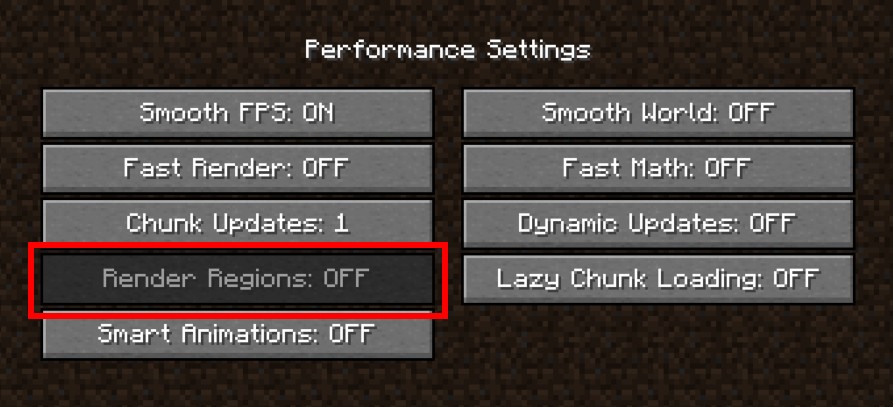
Now test your issue to see if this worked. If the OpenGL Error: 1281 message still occurs, don’t worry, there are still other fixes you can try below.
Update your graphics driver
Sometimes you see OpenGL Error: 1281 error on Minecraft because of a problem graphics driver. To fix it, you should try updating that driver.
You can use Device Manager on your Windows system, or go to your hardware manufacturer website to find the correct driver manually. Either way, you should make sure the driver you get is correct and up to date.
Or you can use a driver updater. This is a more convenient option — it only takes a few mouse clicks to update a driver!
The driver updater we recommend is Driver Booster, because it’s powerful and easy to use, and you can use it to update drivers for free!
And what’s more, it provides a 60-day money back guarantee. So you can give it a try without taking any risks.
To use Driver Booster to update your graphics driver:
Step 1: Download Driver Booster and install it on your computer.
Step 2: Launch Driver Booster, and scan for driver updates.
Step 3: Update your graphics driver (click the update button next to it). Or click the red Update Now button to update all your drivers.
Note that the download speed is slow in the free version of Driver Booster. If you want to get rid of the speed limit and unlock its full features, you need to upgrade to its PRO version.
Once your graphics driver is updated, test to see if this fixes your OpenGL 1281 error.
Disable the Show GL Errors setting
Perhaps you’ve tried everything and the Open GL: 1281 error still keeps popping up. But in the meantime it seems that everything is working properly. In this case, it is fine to just turn the notification off and ignore the message. To do so:
Step 1: Launch Minecraft.
Step 2: On the home menu, click Options.
Step 3: Select Video Settings > Others.
Step 4: Set the Show GL Errors option to OFF.
Now you won’t see the annoying message in the chat again.
Has any of the fixes above worked for you? Or do you have any other effective ways to fix the the OpenGL Error: 1281 issue? Tell us by leaving a comment below!